Table of contents
When your lender uses NewRez to deliver disclosures, you’ll receive an email letting you know your documents are ready to review and sign. The process is secure, straightforward, and can be completed on your phone, tablet, or computer.
This guide walks you through each step so you can complete your NewRez disclosures quickly and keep your loan moving forward.
Step-by-Step: How to Sign Disclosures with NewRez
1. Look for an email notification
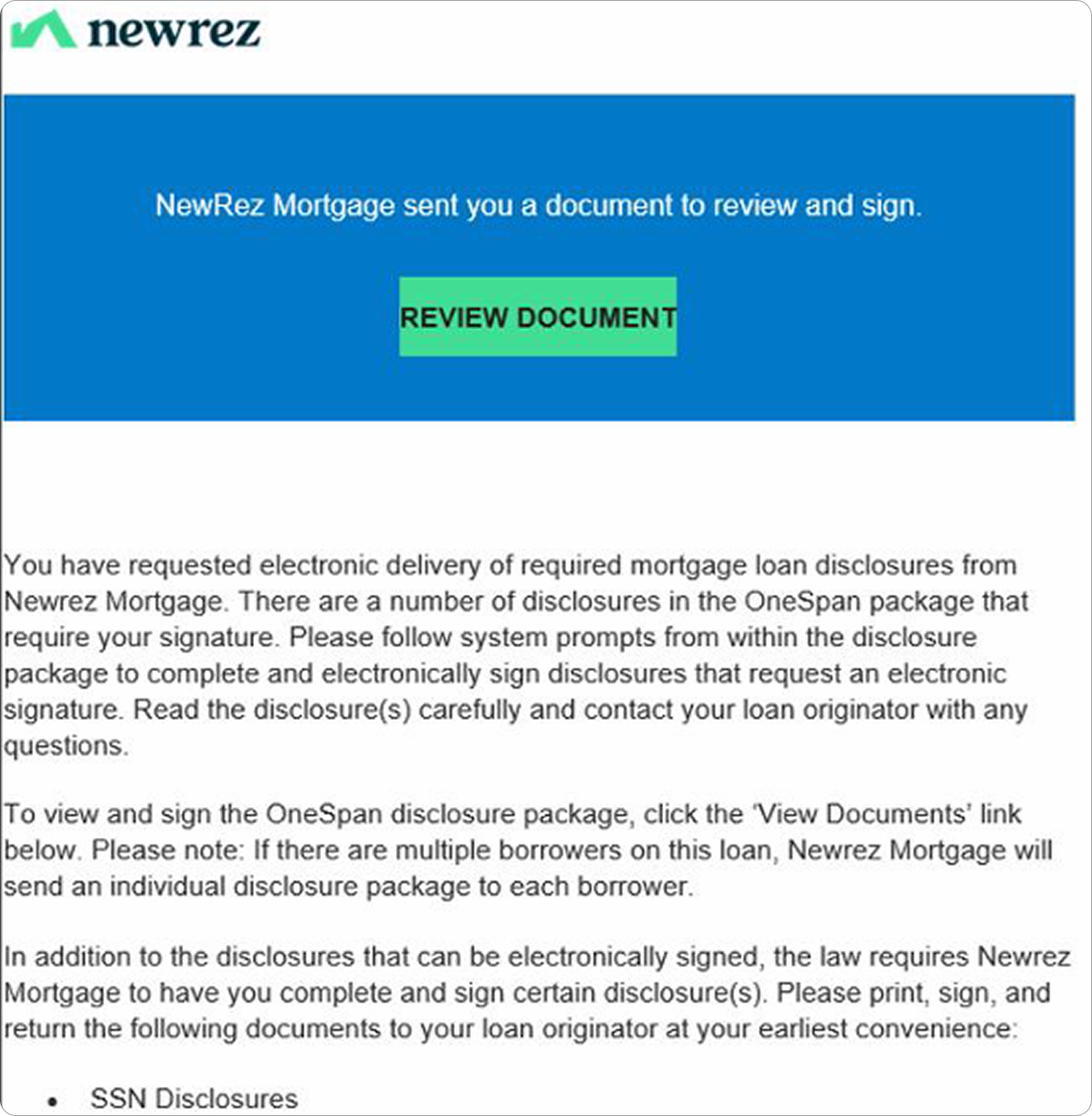
You’ll receive an email from signers@esignlive.com letting you know your loan documents are ready.
- Each borrower will receive their own email (even if you share an email address)
- The subject line will indicate which borrower needs to sign
Open the email and click Review Document to begin.
2. Click “Review Document”
Select the Review Document button in the email to access your disclosures and start the process.
3. Authenticate your account
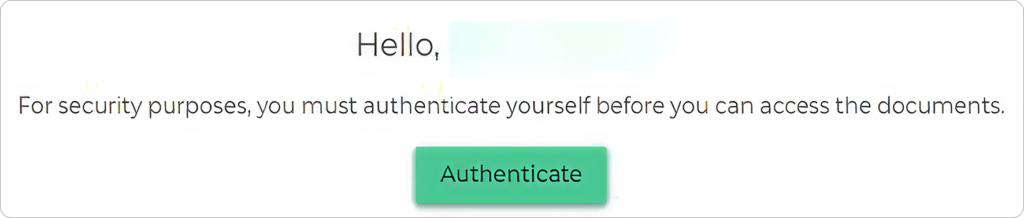
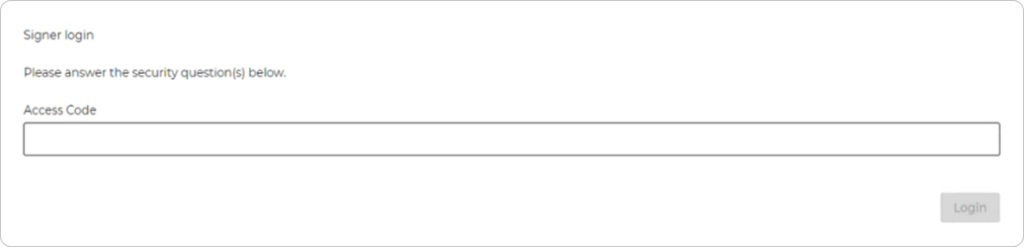
Click Authenticate, then enter your access code and click Login.
By default, your access code is the last 4 digits of your Social Security number.
4. Accept electronic consent
Before continuing, you’ll need to agree to receive documents electronically.
- Click Accept to proceed
- Check the box confirming your agreement

5. Begin reviewing your documents
Click Next to start reviewing your loan disclosures.
6. Review and sign each document
As you go through your disclosures:
- Click Sign or Initial where prompted
- Follow on-screen instructions
- Click Next to move through each document
Each borrower will sign their own set of documents.


7. Complete all required signatures
Once everything is signed or initialed, the Done button will appear.
- Click Confirm to complete the signing process
⚠️ Important: All required signature fields must be completed for your documents to be successfully submitted.

8. Review and sign additional forms (if prompted)
Some documents (like the 4506-C form) may appear after your initial signing.
- Click Sign to finish
- Click Next to review
- Complete any required selections (radio buttons)

9. Final confirmation
After completing all documents:
- Click Done, then Confirm to finalize your submission
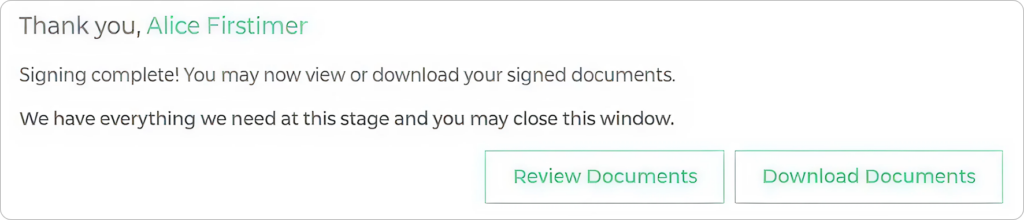
10. Download or review your completed disclosures
Once finished, you can:
- Click Download Documents to save or print copies for your records
- Click Review Documents to view your signed package
Tips for a Smooth Signing
Use the last 4 digits of your SSN exactly as entered on your application when logging in
Each borrower must complete their own set of documents
Follow the prompts carefully — you won’t be able to finish until all required fields are completed
Take your time reviewing documents before signing
If something looks incorrect, contact your UnrealFi loan advisor before completing the process
Final Thoughts
Signing your disclosures with NewRez is fast, secure, and easy. Once completed, your signed documents are automatically returned to your loan team so they can move forward with the next steps in your mortgage process.
If you have any questions or run into issues while signing, your UnrealFi loan advisor is here to help every step of the way.