Table of contents
As part of your mortgage application, Towne Mortgage will send you a secure disclosure package that must be reviewed and signed electronically. Completing your disclosures promptly helps keep your loan moving forward and prevents delays in processing.
This guide walks you through each step of the signing process, from opening the disclosure email to submitting your signed documents.
Step-by-Step: How to Sign Disclosures with TOWNE
1. Open the Disclosure Email
Each borrower will receive their own email containing a secure link to access their disclosures. The email will reflect the broker email address as well as MortgageTech@ice.com.
If there are multiple borrowers on the loan, each person must use the email addressed specifically to them.
Click the “Click Here” button in the email to begin.

2. Choose How to Receive Your Authentication Code
If this is your first time signing disclosures through Towne Mortgage, you’ll need to verify your identity.
Choose whether you’d like to receive your authentication code by:
- Text message
- Phone call
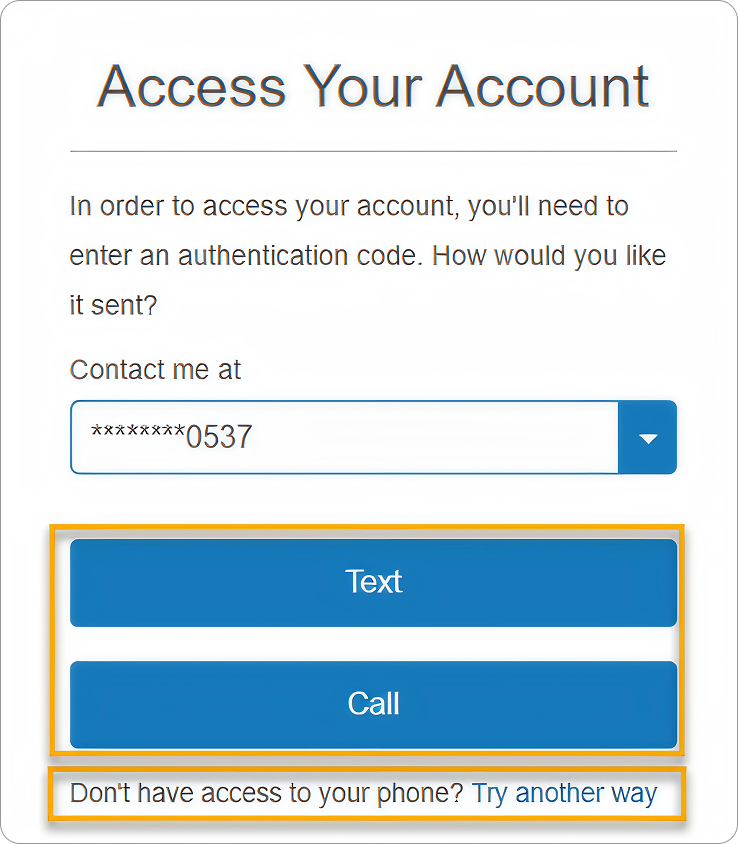
3. Receive the Authentication Code by Text
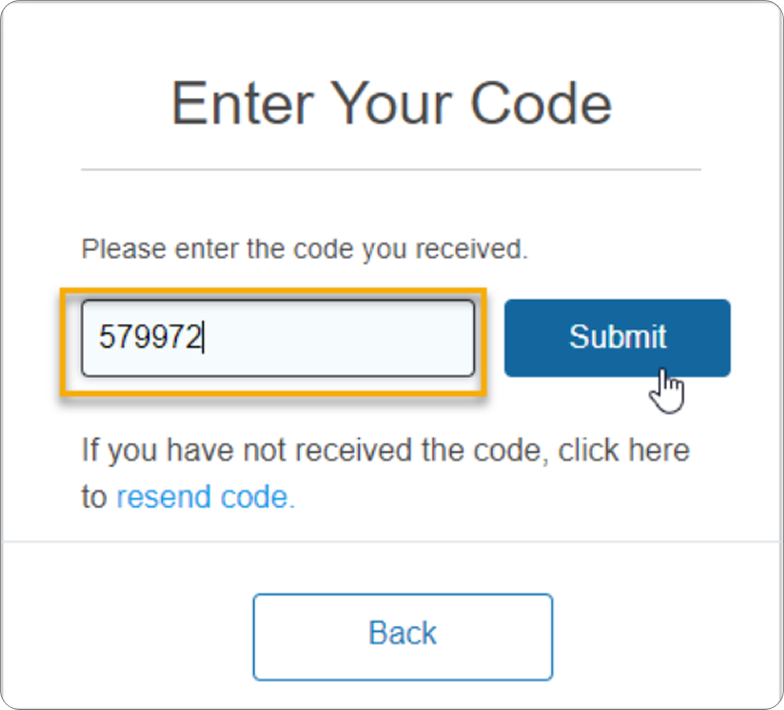
If you selected the text option, Towne Mortgage will send a verification code to your mobile phone.
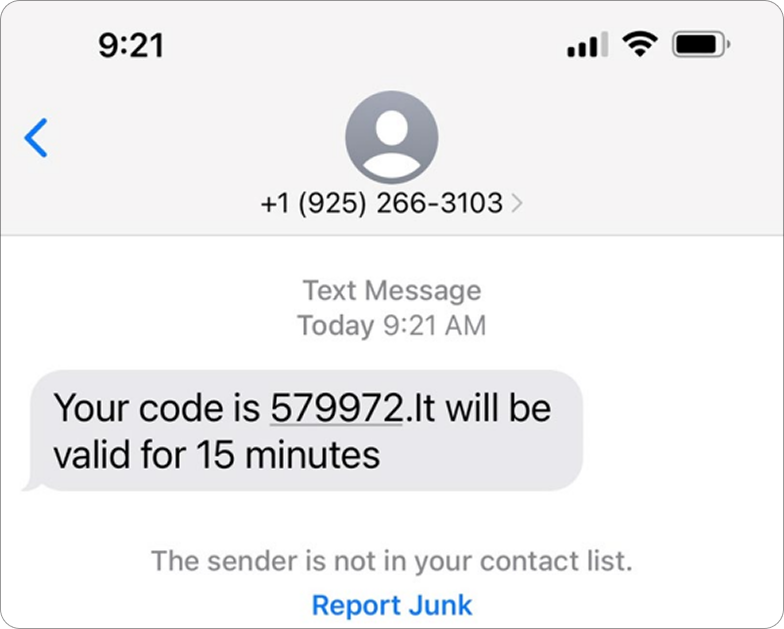
Enter the code you received and click Submit.
4. Use Email Verification (If Needed)
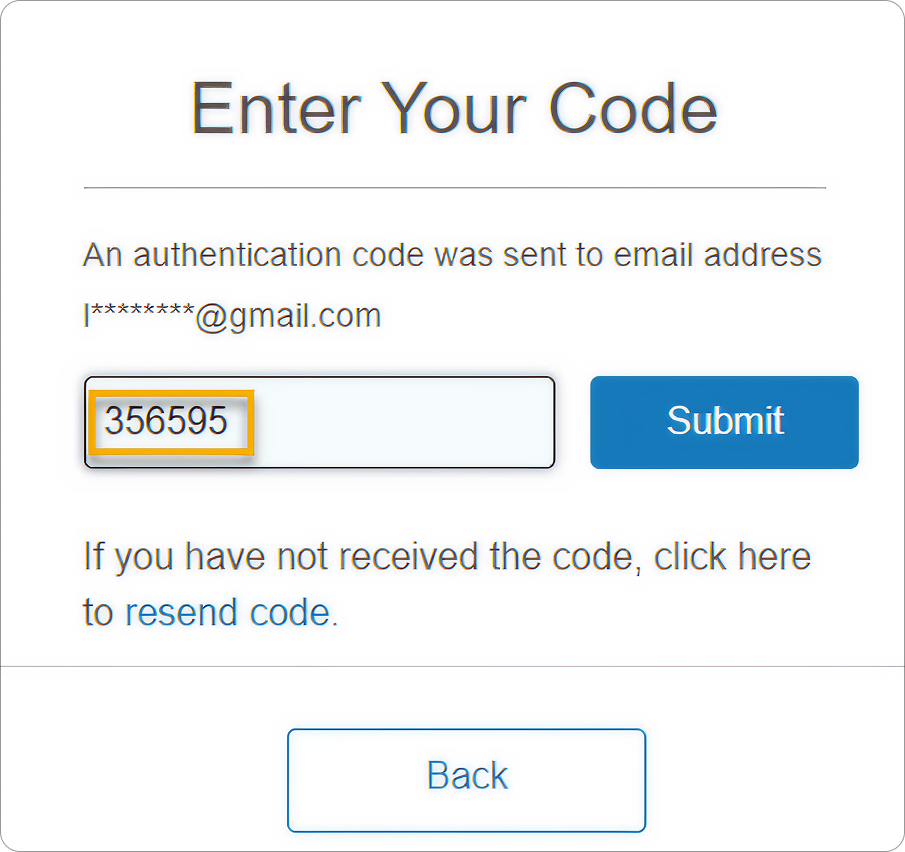
If you choose “Try Another Way,” you can have the authentication code sent to your email address instead.
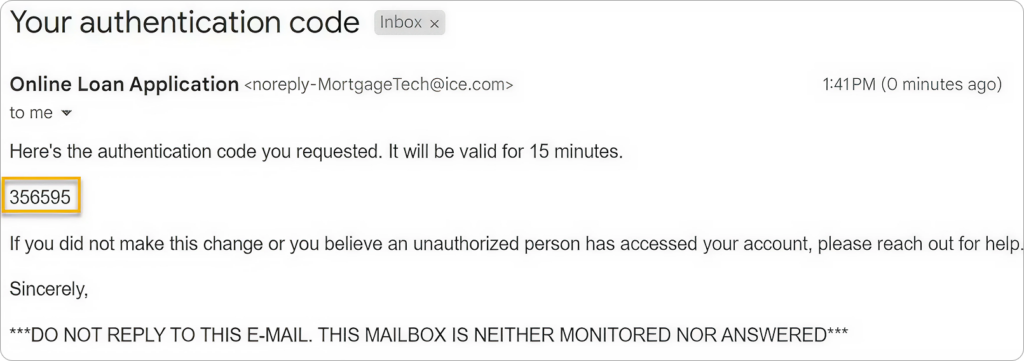
Retrieve the code from your email and enter it on the verification screen.
5. Create Your Consumer Connect Account
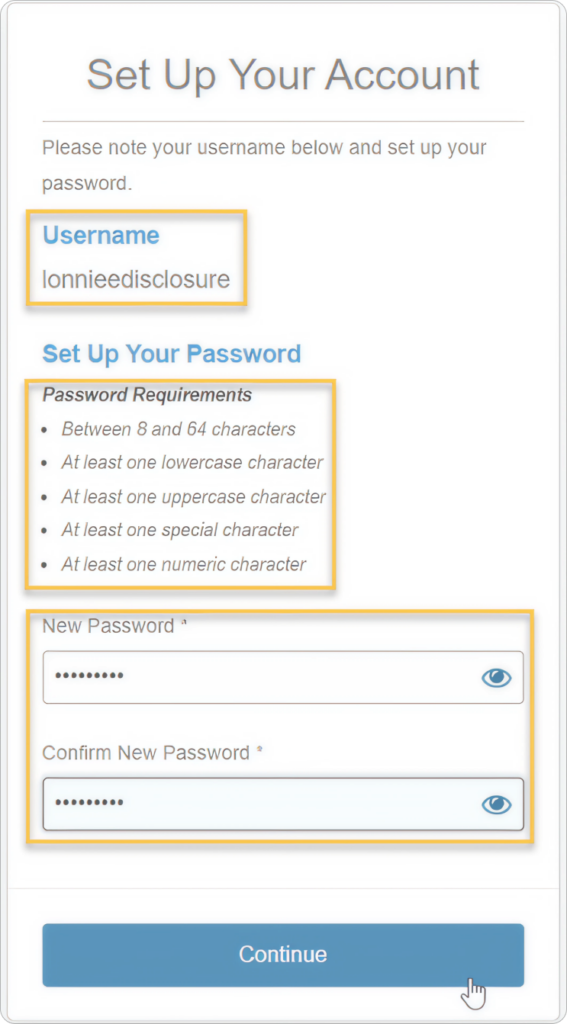
The system will automatically assign you a username.
Create a password that meets all security requirements and click Continue.
This username and password will be used whenever you access future disclosures.
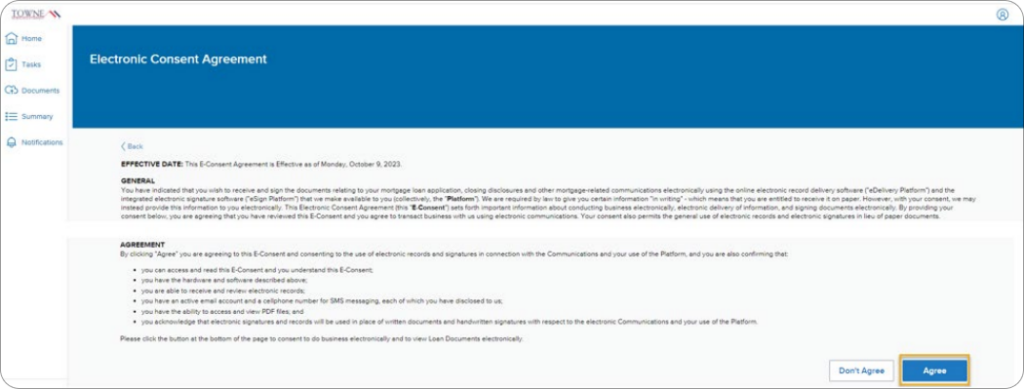
6. Review and Accept the Electronic Consent Agreement
Before viewing your disclosures, you’ll be asked to review the Electronic Consent Agreement.
Scroll to the bottom of the agreement and confirm that you agree to receive documents electronically.
7. Review Your Available Tasks
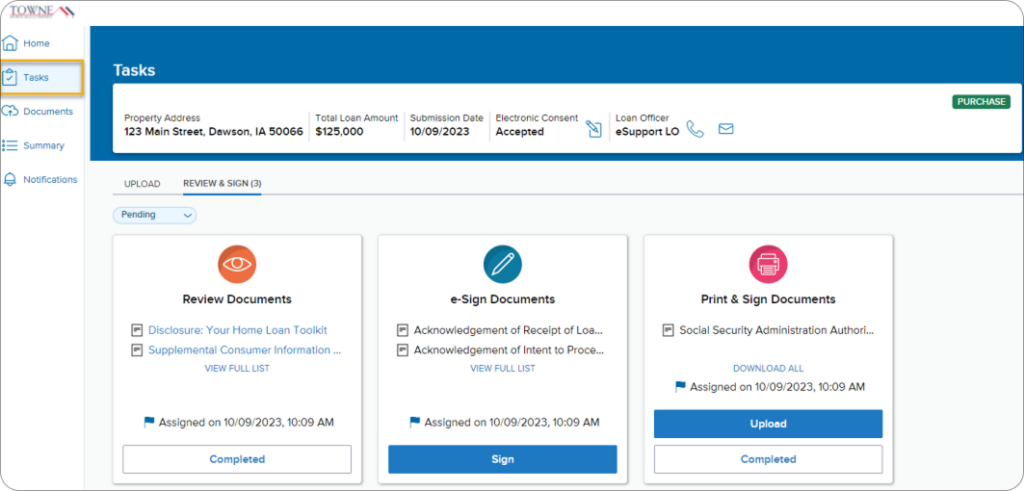
After logging in, you’ll be taken to the Tasks page.
Your disclosure package may contain three types of tasks:
- Review Documents — Documents that only require review.
- eSign Documents — Documents that require electronic signatures.
- Print & Sign Documents — Documents that require a handwritten signature.
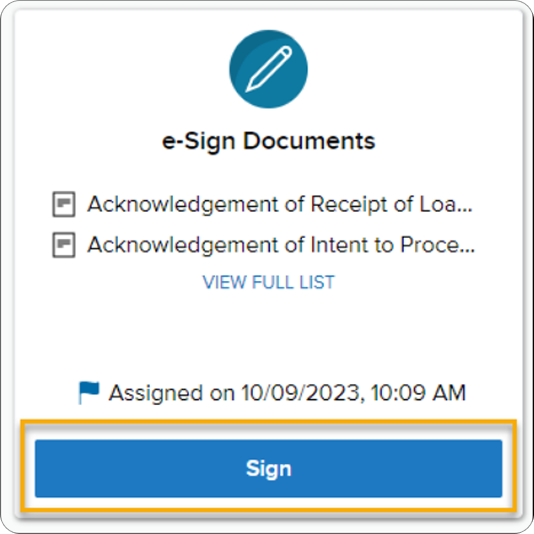
8. Open the eSign Documents Package
Under the eSign Documents section, click Sign to begin reviewing and signing your disclosures.
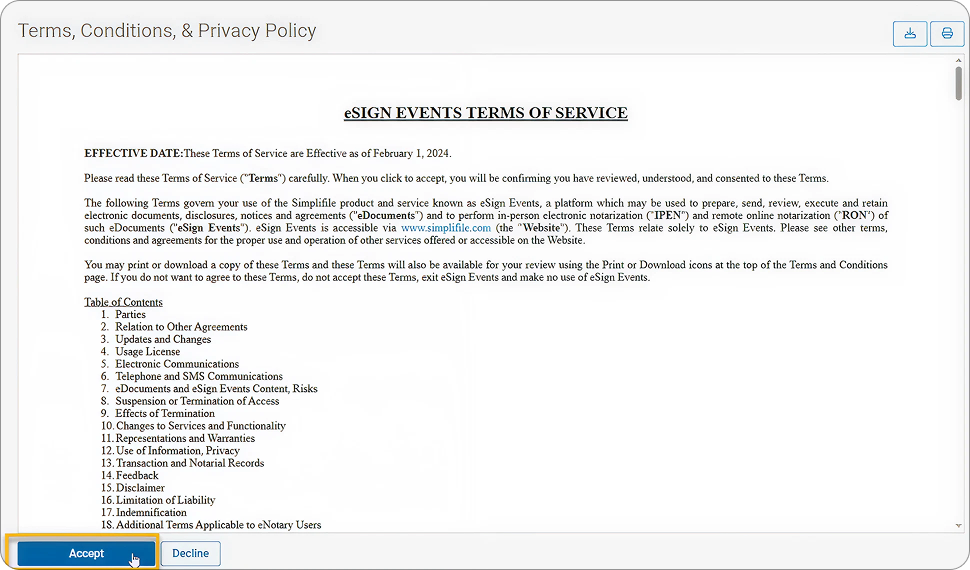
9. Accept the Terms, Conditions, and Privacy Policy
Before signing, you’ll be asked to review and accept the system’s Terms, Conditions, and Privacy Policy.
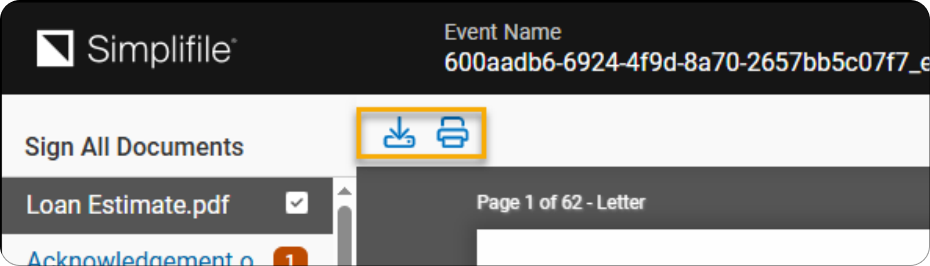
10. Download or Print Documents (Optional)
Before signing, you may download or print a copy of the disclosure package for your records.
The controls at the top of the screen allow you to save or print the documents.
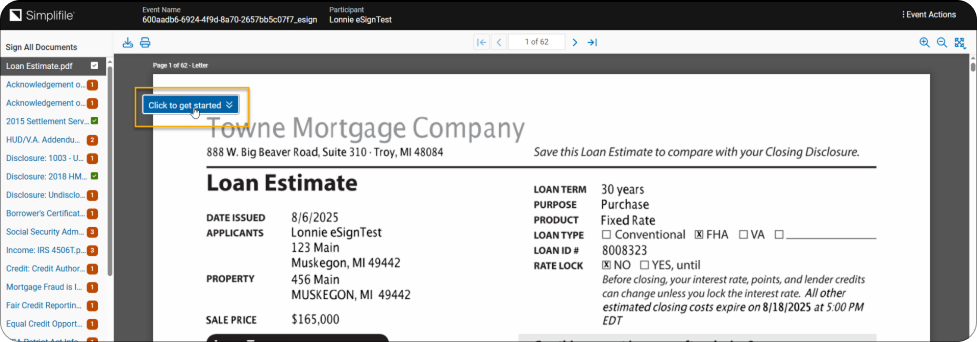
11. Start the Electronic Signing Process
When you’re ready to proceed, click Click to Get Started.
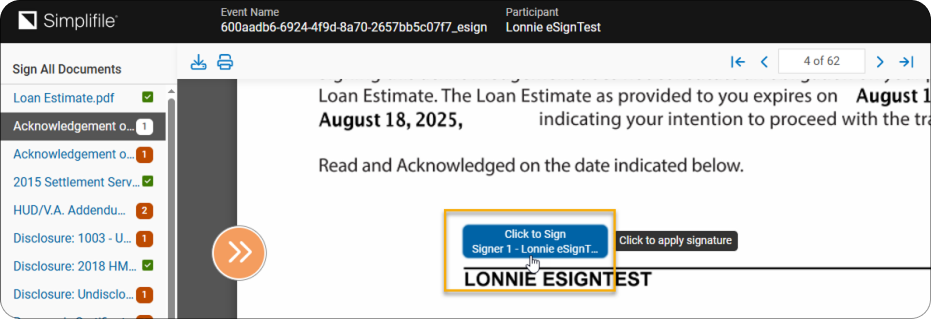
12. Select the First Signature Location
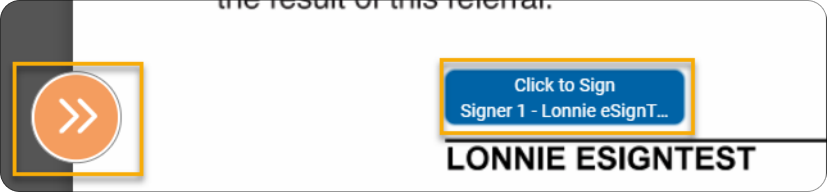
Click the first Click to Sign button.
An orange double-arrow icon indicates that the document still requires a signature.
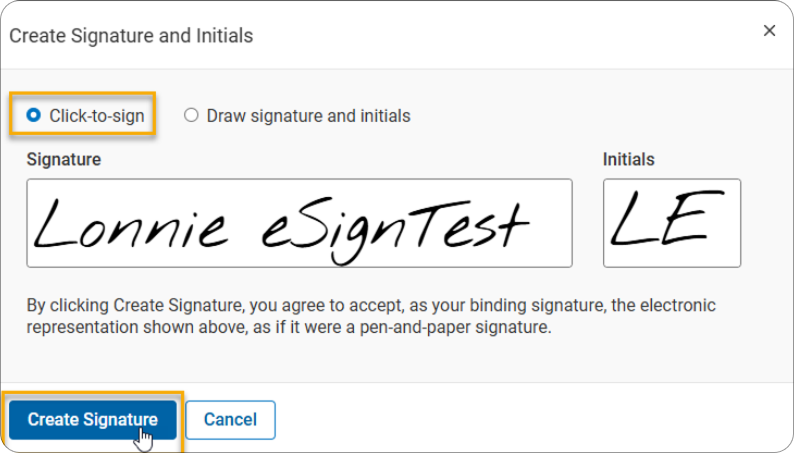
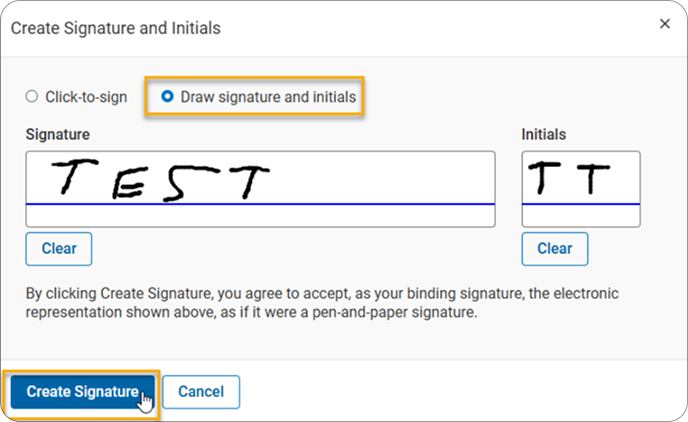
13. Create Your Electronic Signature
The first time you sign documents, you’ll be asked to create an electronic signature.
You can either:
- Use the Click-to-Sign option (recommended)
- Draw your own signature and initials
Once you’ve selected your preferred option, click Create Signature.
14. Complete All Required Signatures
Continue clicking each Click to Sign button throughout the disclosure package.
As signatures are completed, the orange icon will change to a green checkmark.
If any signatures are missed, the system will automatically direct you back to those locations before allowing submission.

15. Finish the Signing Process
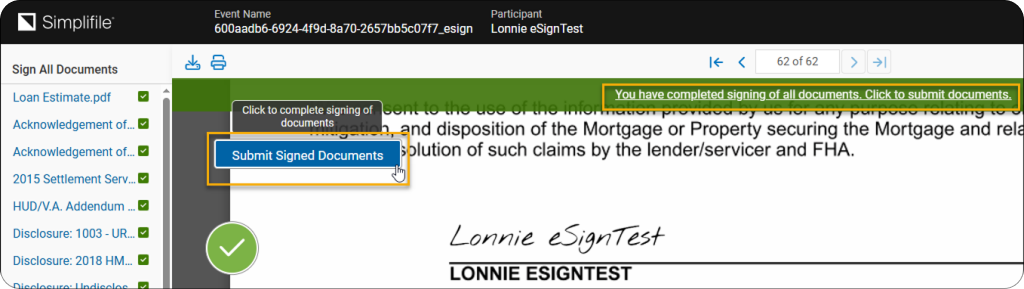
After completing the final signature, you’ll see a confirmation message indicating that all documents have been signed.
At this point, click Submit Signed Documents.
This step is required. Your signed disclosures are not returned to Towne Mortgage until they are submitted.
16. Confirm Submission
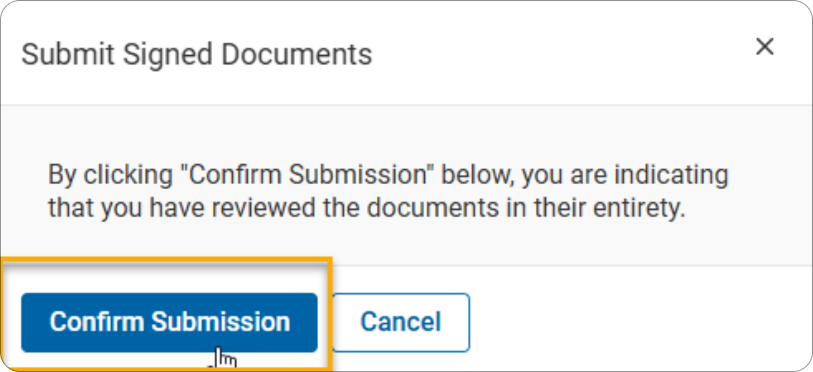
Click Confirm Submission to finalize your signed disclosures.
17. Download Your Signed Documents
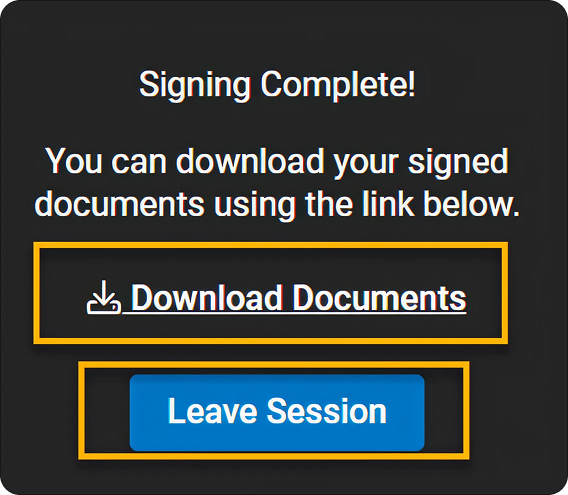
After submission, you’ll have the option to download a copy of your signed disclosure package for your records.
You may also select Leave Session to return to your dashboard.
18. Return to the Tasks Page
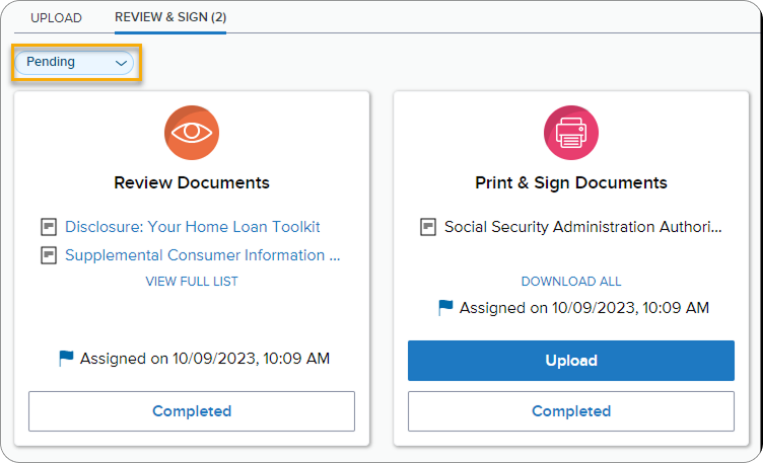
After selecting Leave Session, you’ll be returned to the Tasks page.
Your eSign Documents task will now appear in the Completed section rather than Pending.
19. Download Any Print-and-Sign Documents
Some disclosure packages contain documents that require a handwritten signature.
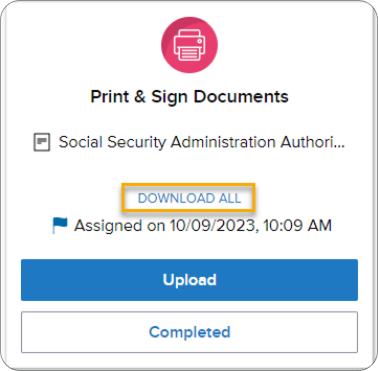
To access these documents, select Download All under the Print & Sign Documents section.
You can print the documents or save them to your computer. The download may also include a fax cover sheet.

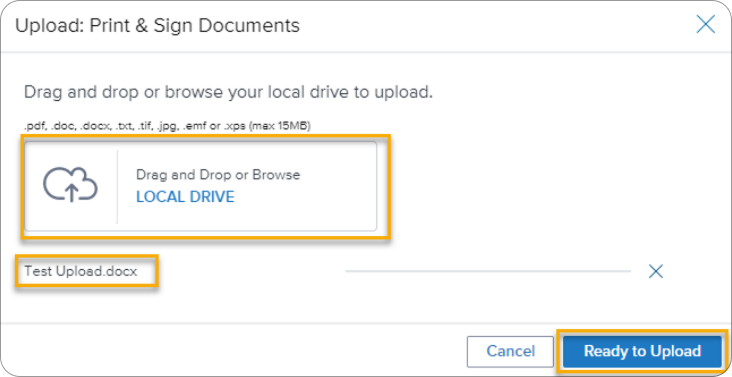
20. Upload Signed Print-and-Sign Documents
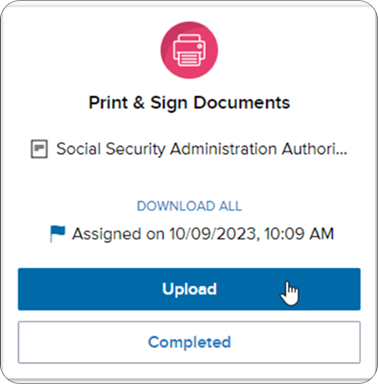
After printing and signing the required documents, return to the portal and click Upload.
Use the Local Drive option to attach your signed documents and then click Ready to Upload.
If preferred, you may also return the documents using the fax cover sheet included in the package.
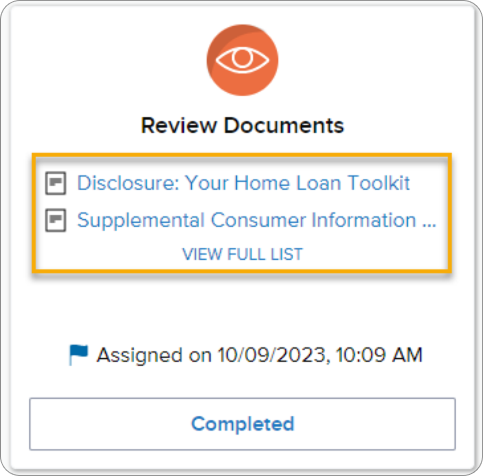
21. Review Documents That Do Not Require Signatures
Some documents only require review.
Click the document title to open, review, print, or save these disclosures.
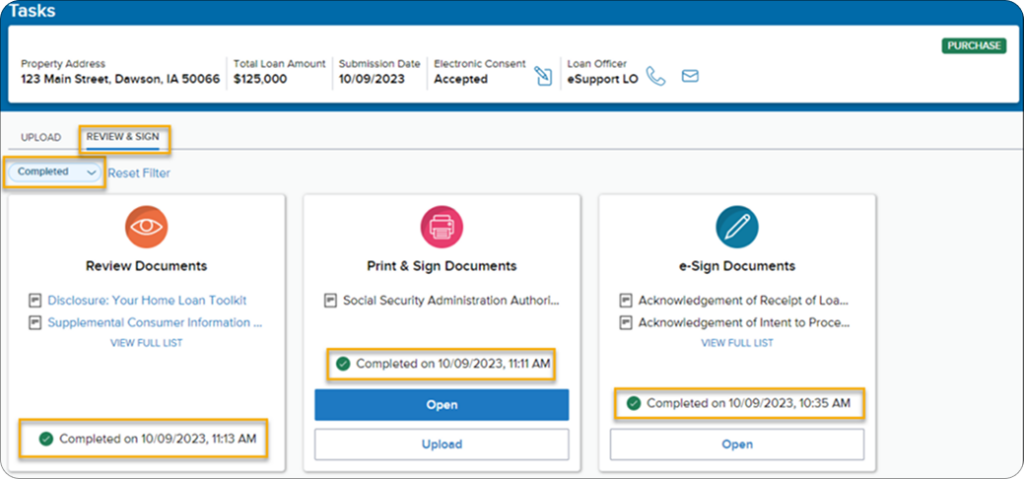
22. Verify All Tasks Are Complete
Once all disclosure tasks have been completed, you should no longer see any pending items.
If you’d like to view previously completed tasks or review signed documents in the future, change the task filter from Pending to Completed.
Tips for a Smooth Signing
- Use the email addressed specifically to you if there are multiple borrowers on the loan.
- Complete all disclosure tasks as soon as possible to avoid delays.
- Download copies of important disclosures for your records.
- Review documents carefully before signing.
- If something appears incorrect or you have questions, contact your UnrealFi loan advisor before completing the signing process.
Final Thoughts
Towne Mortgage’s electronic disclosure system allows you to securely review, sign, and submit your loan documents online. By completing all required disclosure tasks promptly—including any print-and-sign documents—you help keep your mortgage application moving smoothly toward approval and closing.
If you need assistance at any point during the process, your UnrealFi loan advisor is available to help.