Table of contents
Borrowers working with STG Mortgage can securely review and sign their loan disclosures electronically using DocMagic. This digital signing process allows you to complete your documents online without printing, scanning, or mailing paperwork.
The process can be completed from your computer, tablet, or smartphone. Here’s exactly how to complete the process from start to finish.
Platform Features
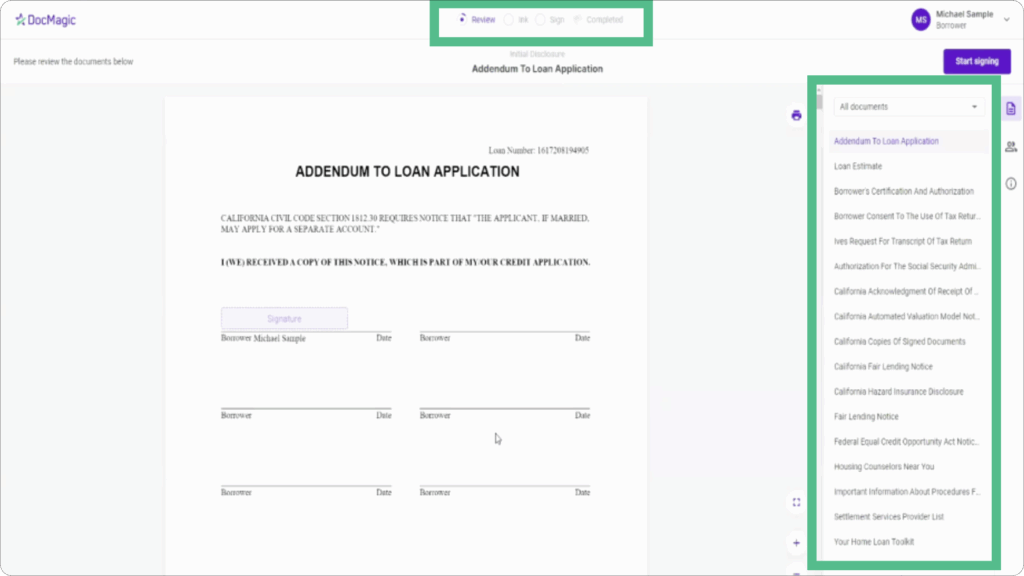
1. Review the document list and progress indicators
Once logged in, all documents will appear in a list on the right side of the screen. Progress indicators across the top show your status for reviewing, ink-signing, and e-signing.
2. Click the Start Signing button
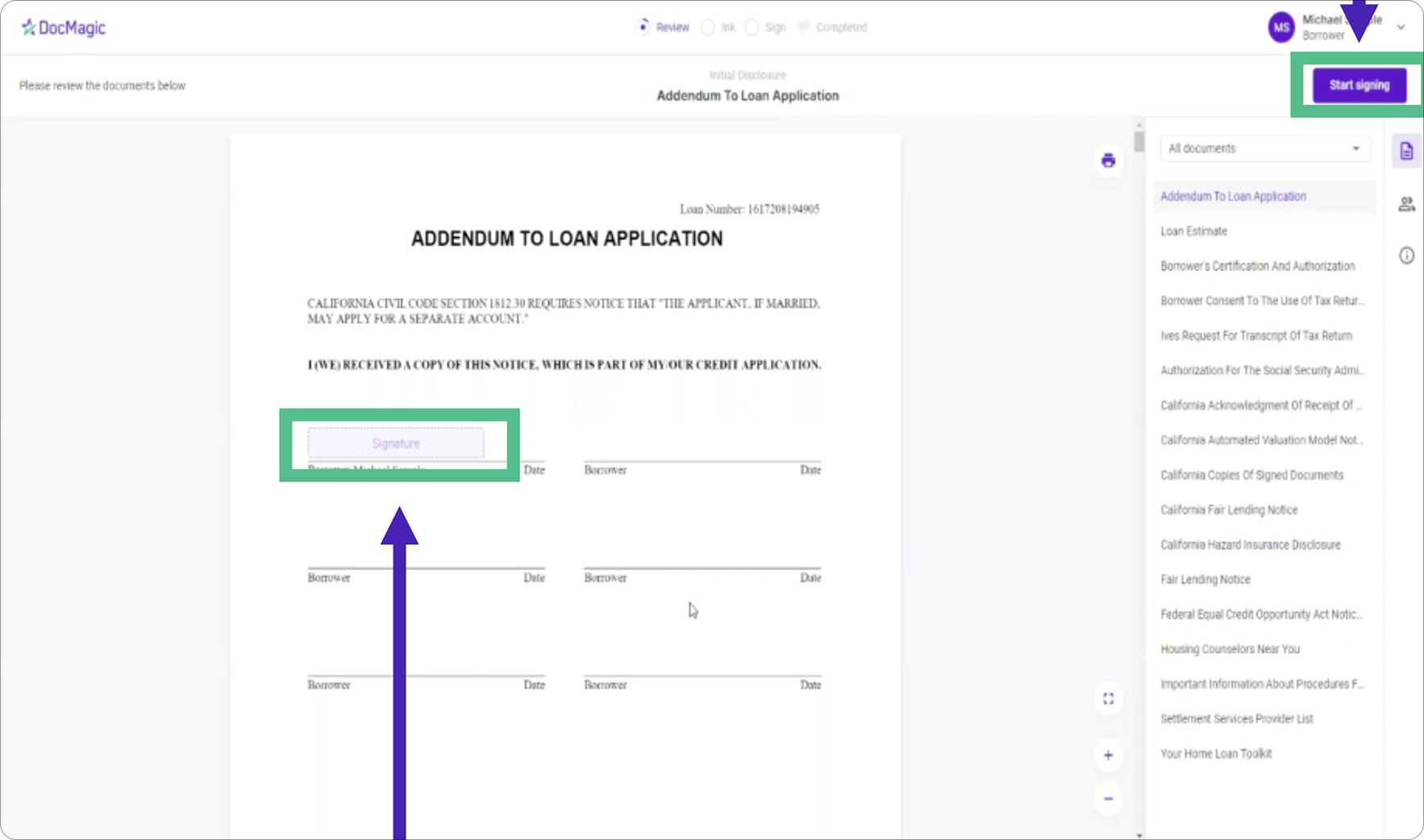
Select the Start signing button in the top-right corner of the screen. Until this button is clicked, documents will remain view-only and cannot be signed.
3. Adjust the signing window and zoom
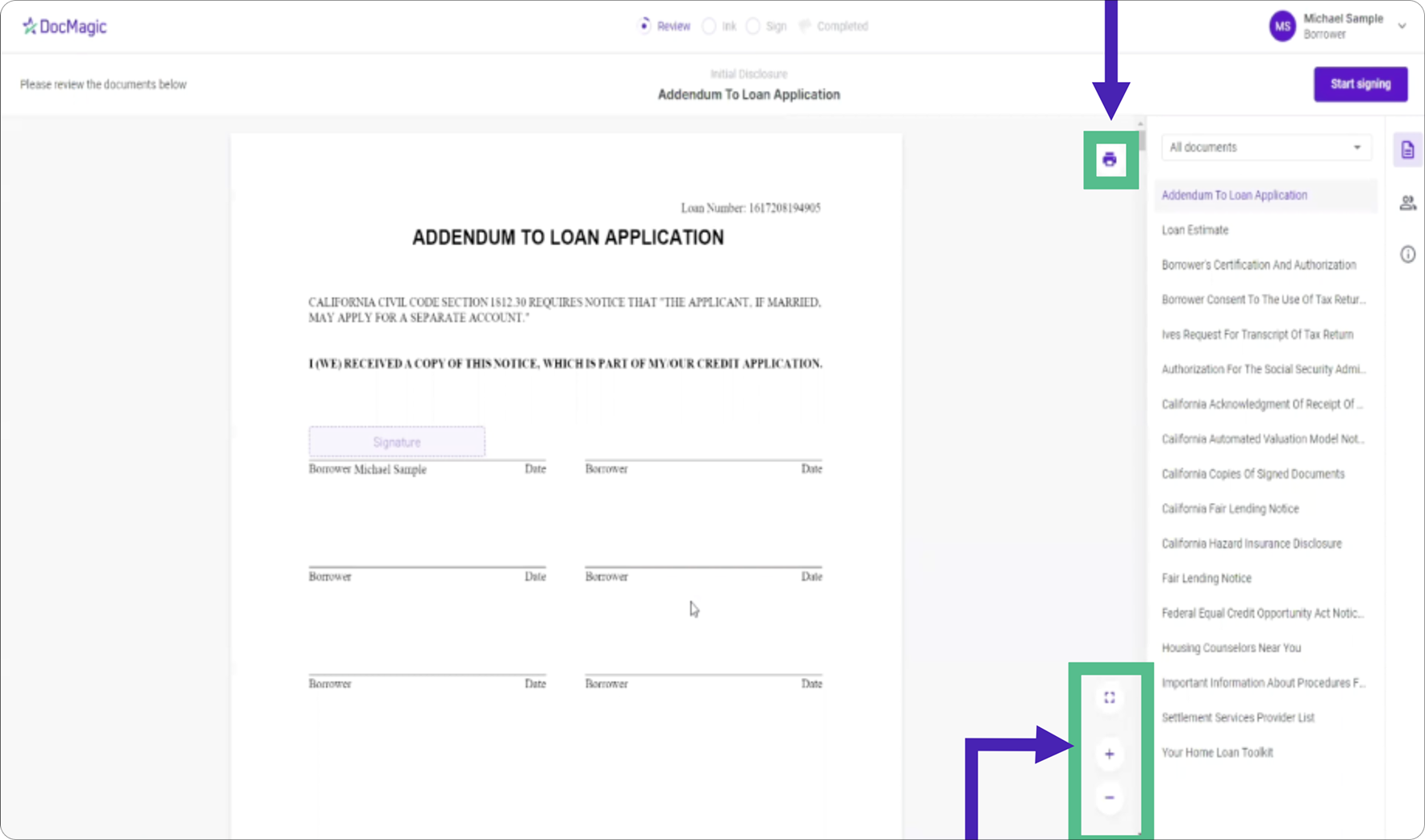
You may expand the signing window, zoom in or out, or print documents using the available on-screen controls.
4. Review and edit borrower information
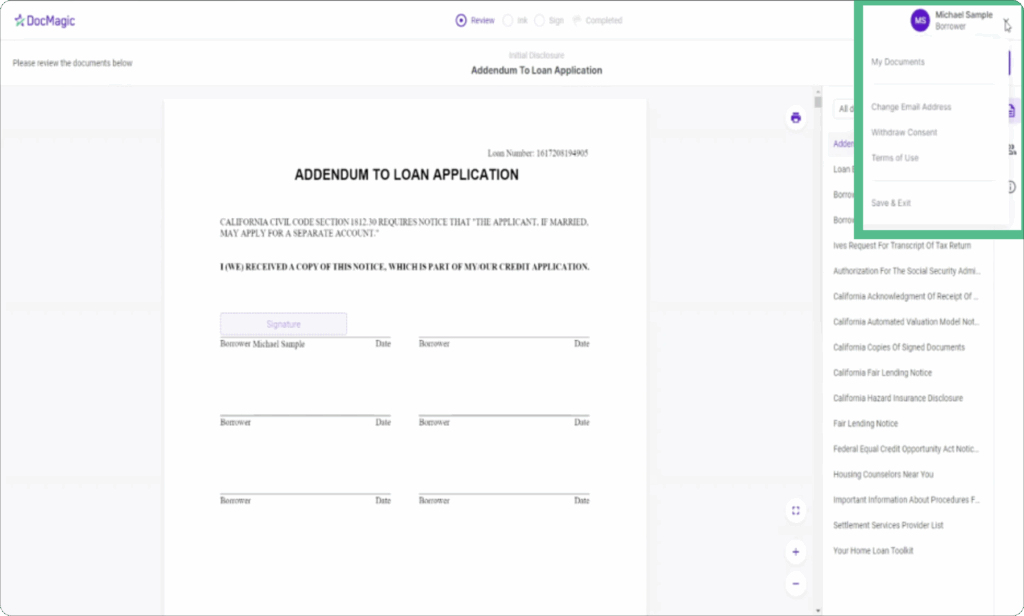
Your borrower information can be viewed and edited directly within the signing portal if updates are needed before signing.
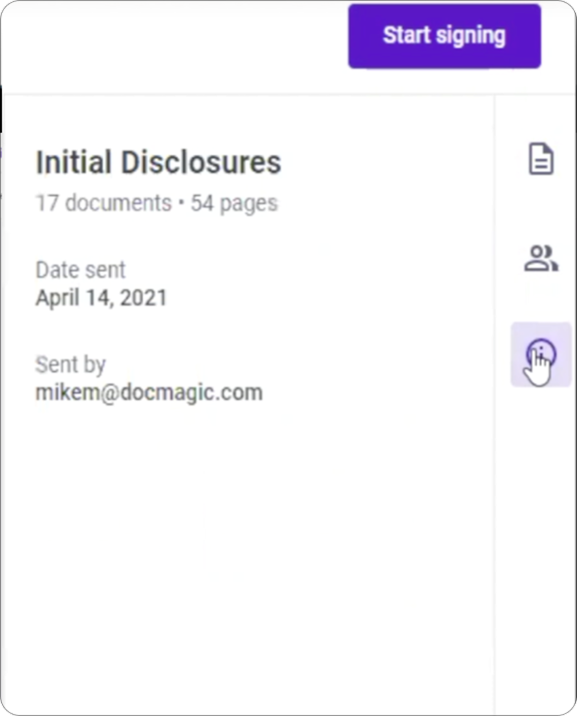
5. View document information
Use the document information option to review details about the documents included in your disclosure package.
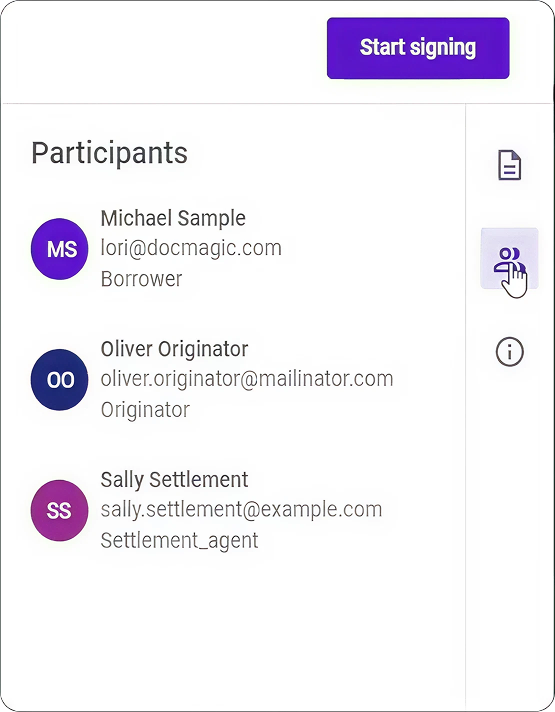
6. View participant information
Select the participants option to see all individuals involved in the signing process.
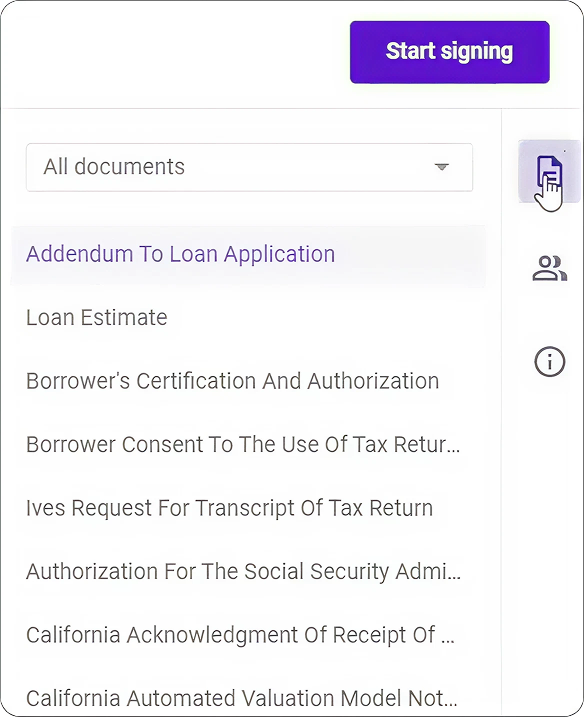
7. Return to the document list
Use the documents option to return to the full list of disclosures at any point during the signing process.
Step-by-Step: How to e-Sign Disclosures with STG Mortgage
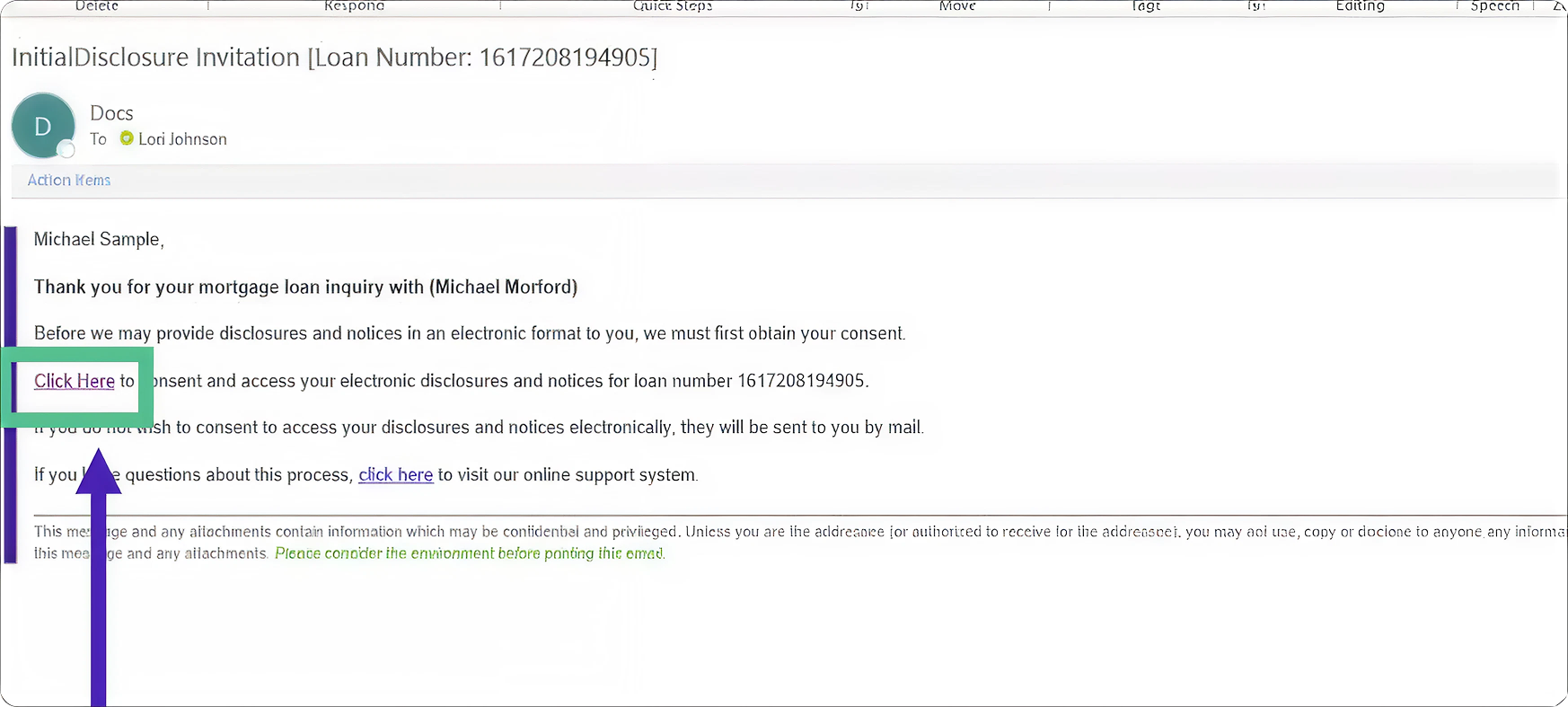
1. Open the signing invitation email
You will receive an email inviting you to access the DocMagic signing portal for your set of documents. Open the email and click the link provided to begin the signing process.
2. Accept the eSign disclosure and consent
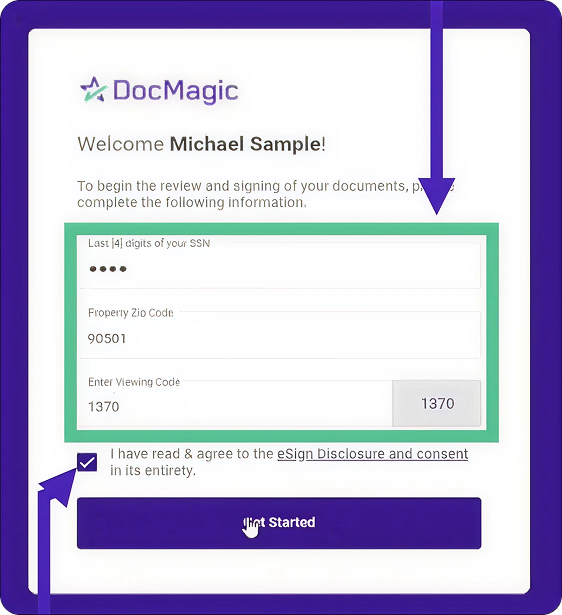
Enter the required verification information, which may include your Social Security Number and a viewing code. In some cases, the lender may also require the property ZIP code for additional verification. Check the eSign Disclosure and Consent box. This step is required before you can sign in and view any documents.
3. Begin the ink-signing process if required
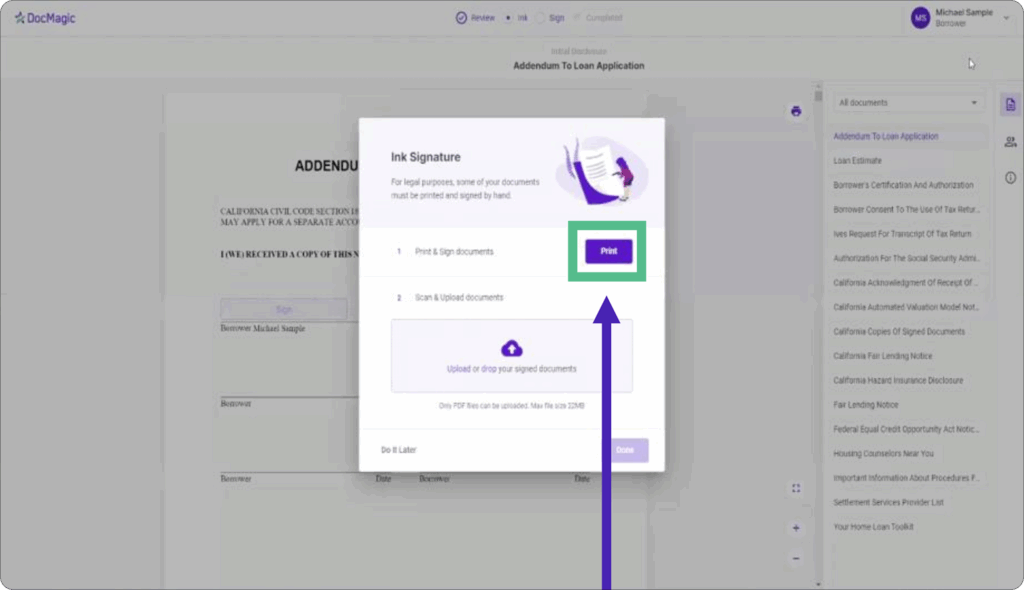
If any documents require ink signatures, you will be prompted to print those documents to begin the ink-signing process.
4. Follow ink-signing instructions
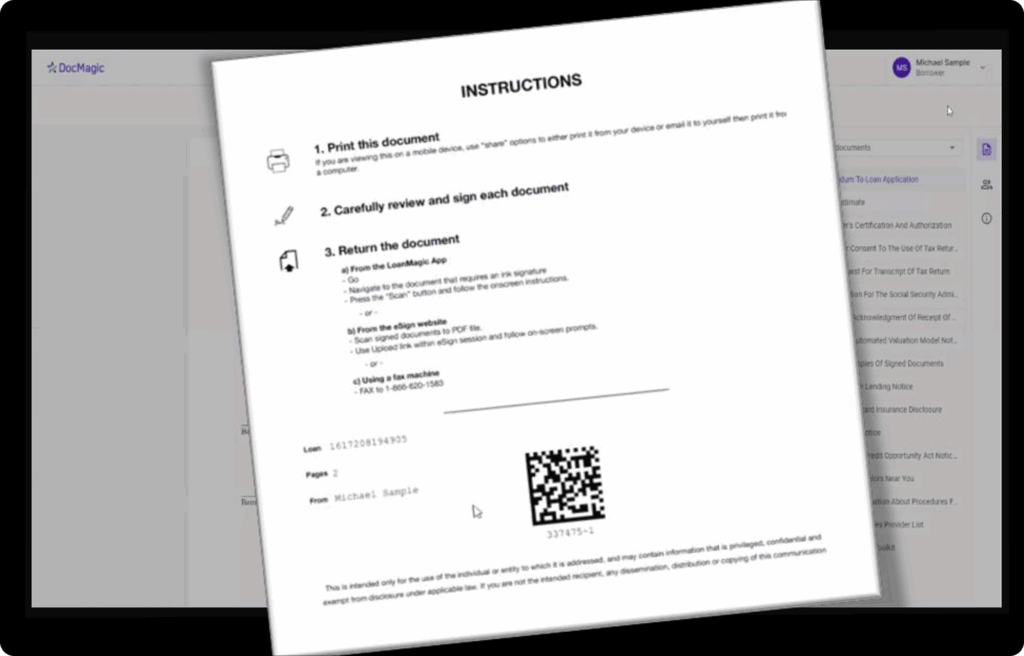
After clicking Print, review and follow the provided instructions to properly ink-sign the required documents.
5. Upload ink-signed documents
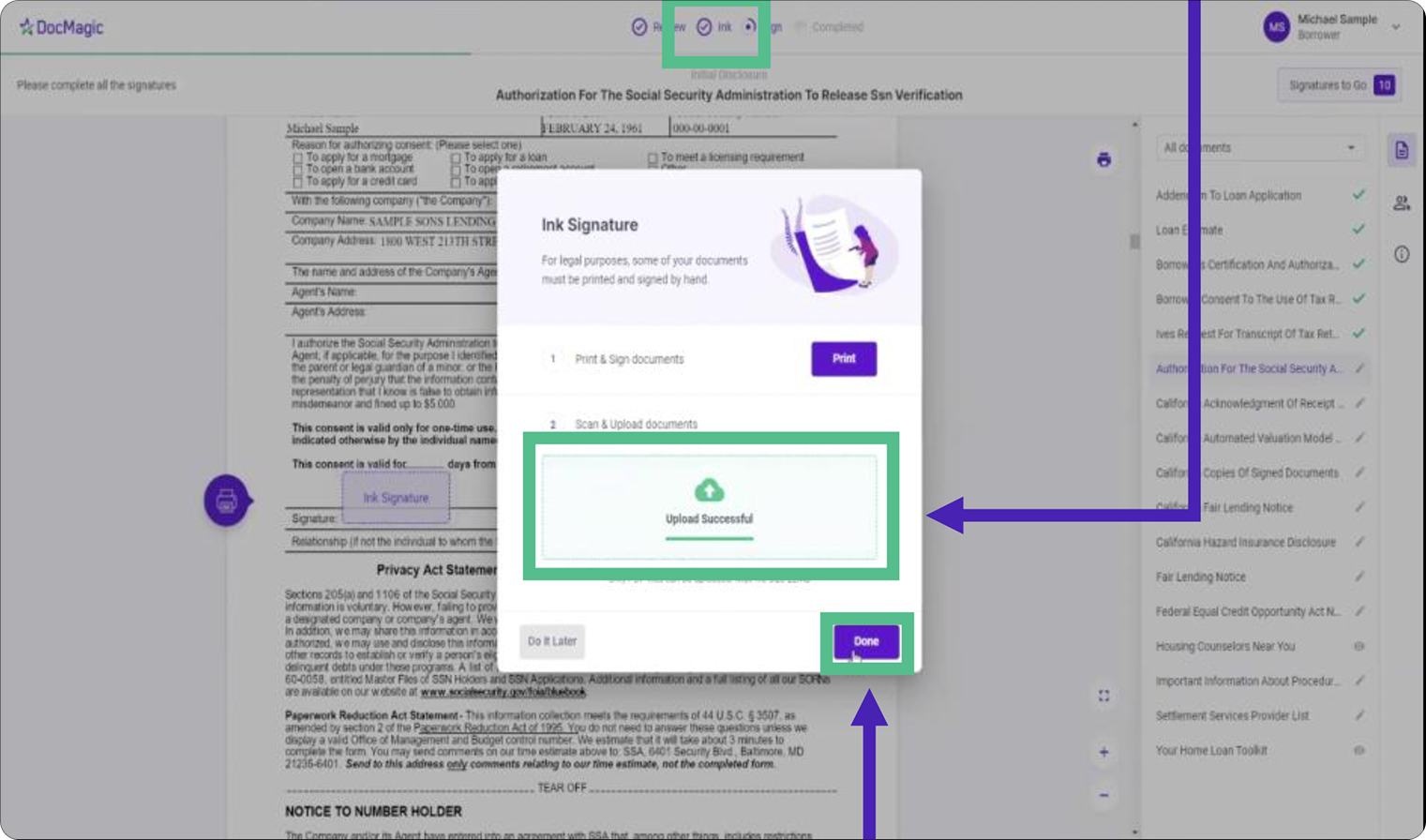
Once the ink-signed documents are scanned and uploaded, you will see confirmation indicators including an “Upload Successful” message. Click Done to return to the document stack.
6. Review click-signing options
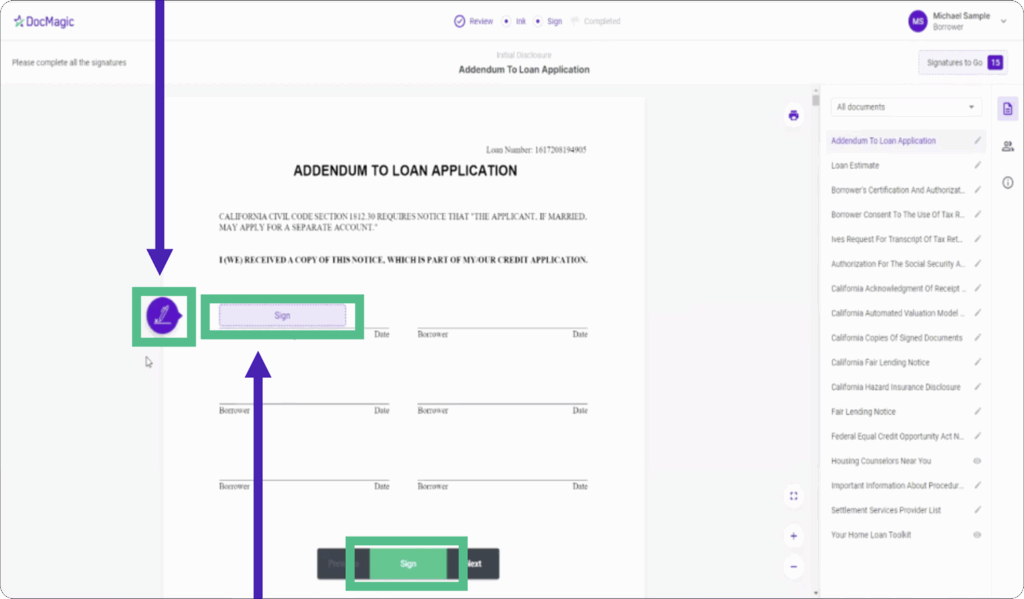
DocMagic provides multiple ways to apply electronic signatures, including clicking the pen icon, selecting the sign box directly, or using the green Sign button to advance automatically.
7. Select a pre-formed signature
You may choose from available pre-formed signature options within the signature selection tab.
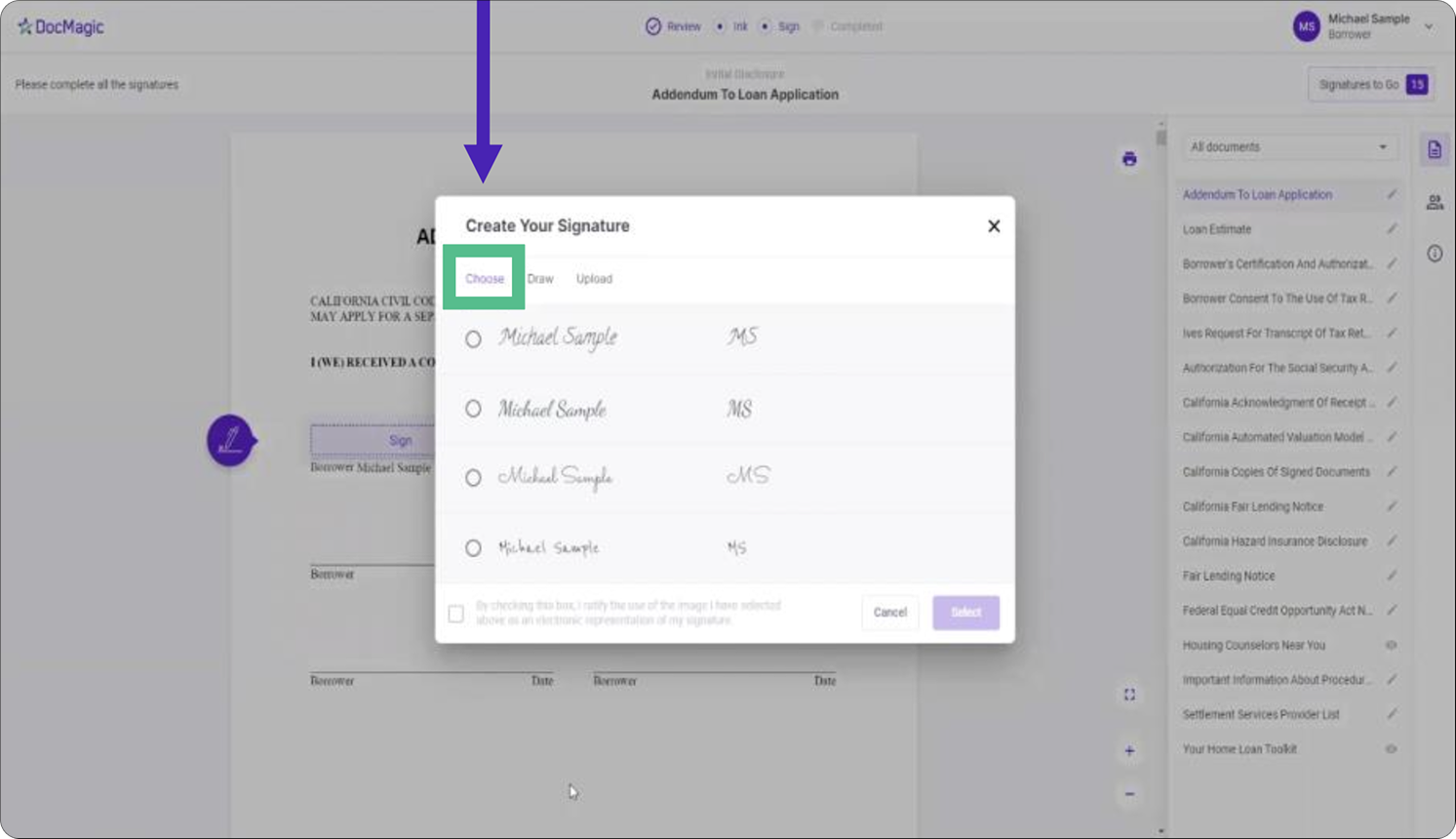
8. Create a new signature or initials
If preferred, you can create a new signature and initials directly within the signing portal.
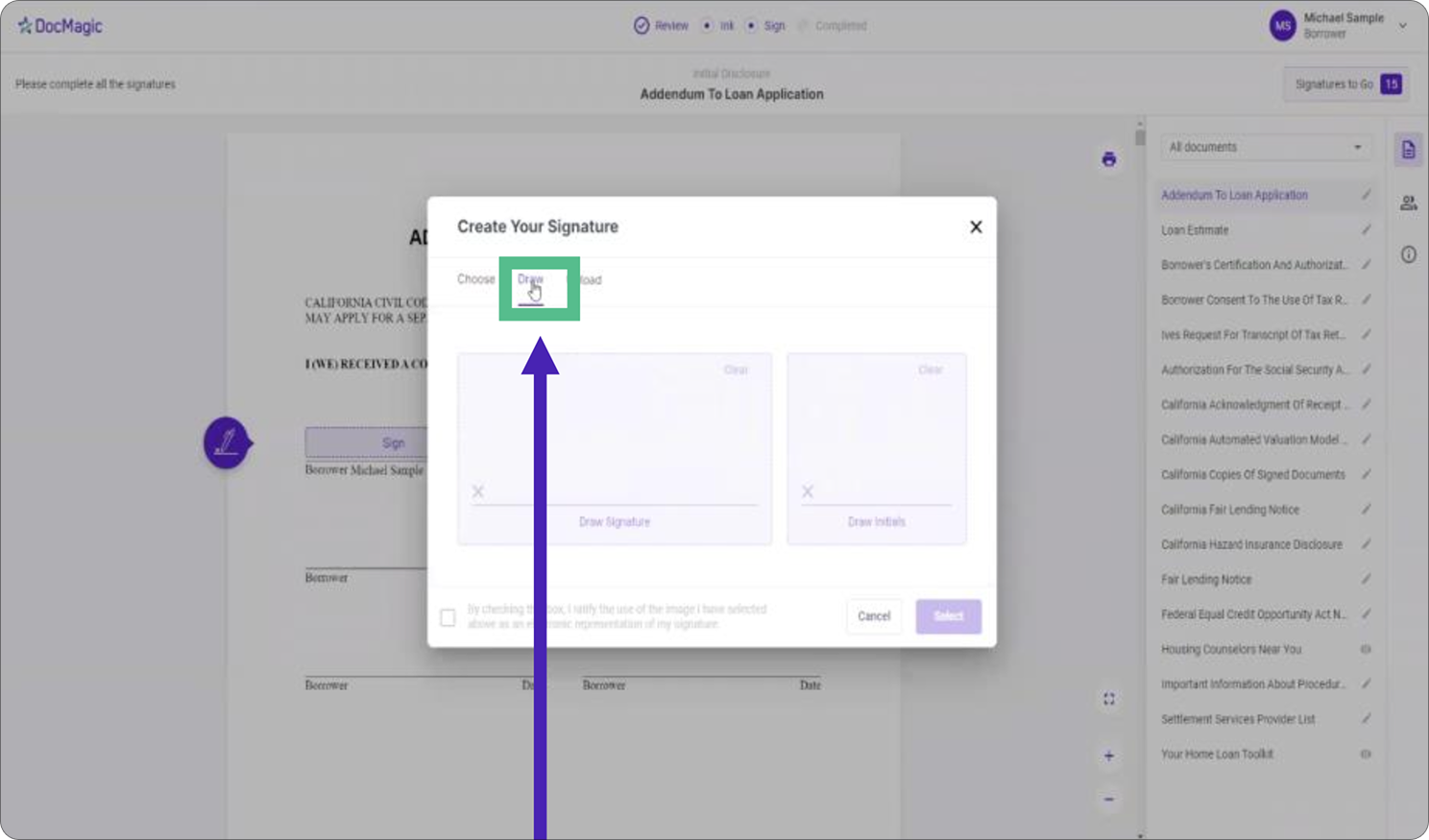
9. Upload a custom signature
You also have the option to upload a JPG or PNG image of your own signature from your computer.
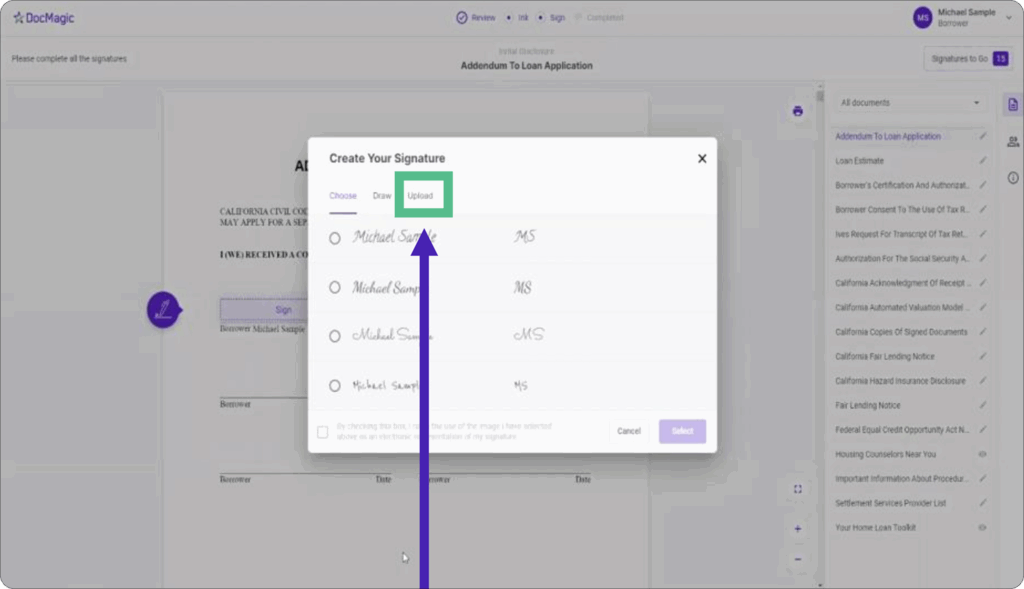
10. Authorize the use of an electronic signature
Regardless of the signature option selected, you must authorize the use of an electronic signature before proceeding.
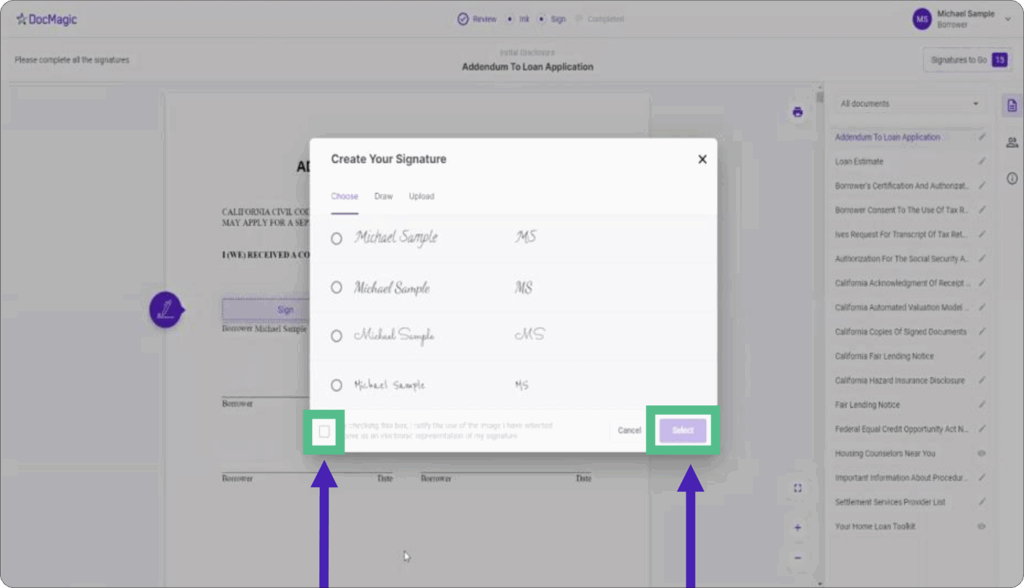
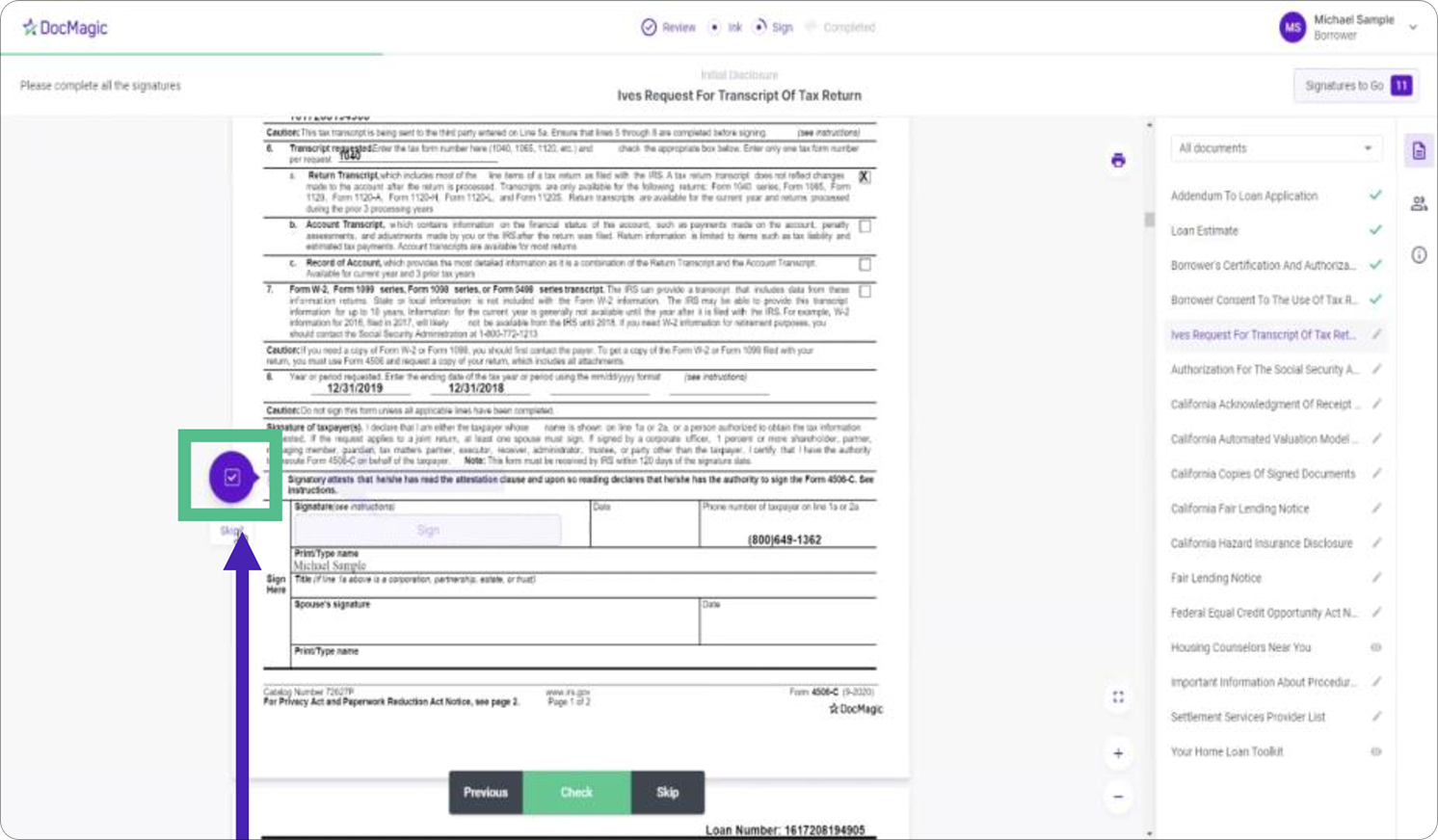
11. Complete required acknowledgment checkboxes
Some documents require acknowledgment checkboxes to be selected before you can sign and proceed.
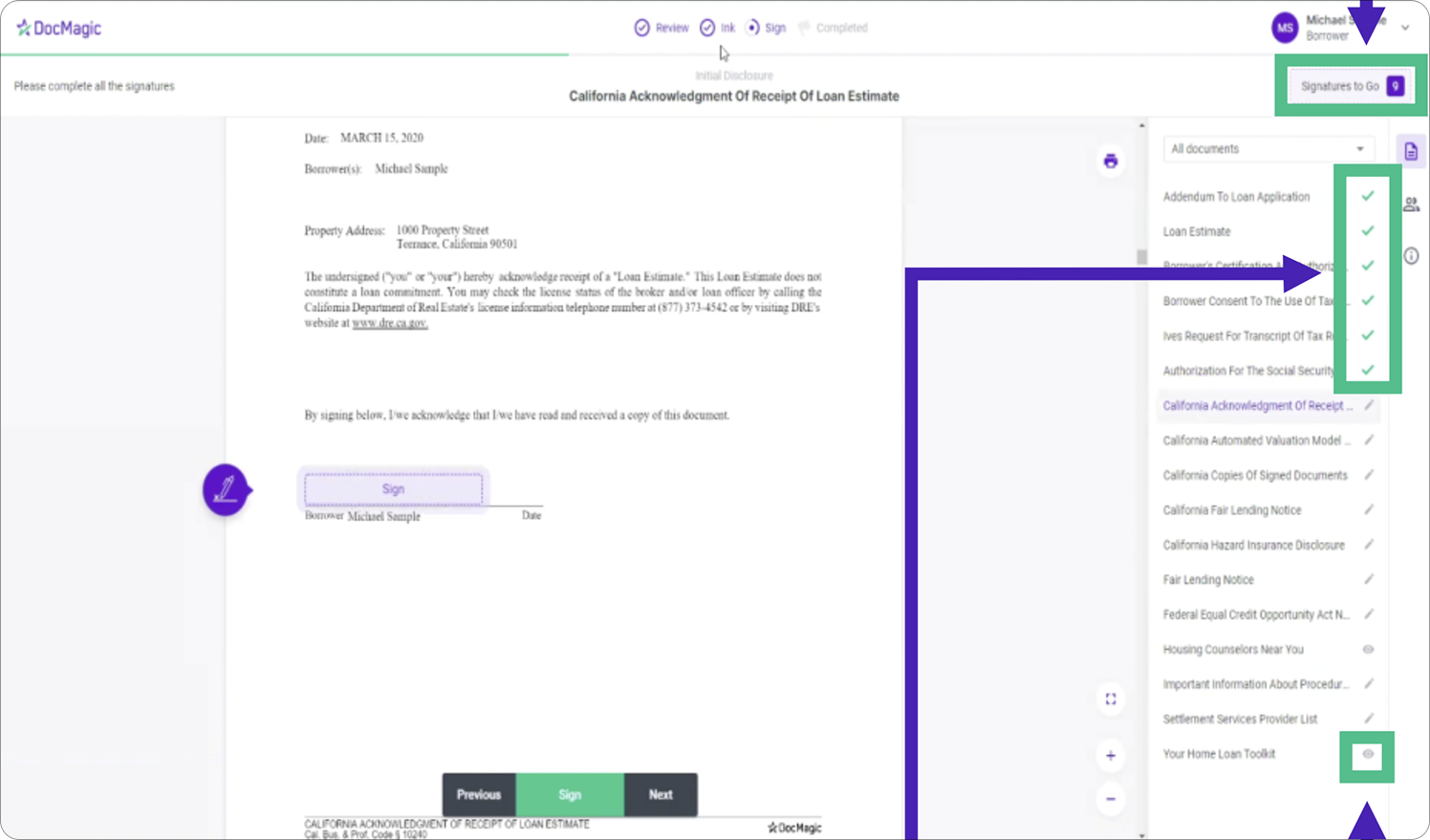
12. Monitor your signing progress
Green check marks indicate completed signatures. Documents marked with an eye icon do not require a signature. A countdown indicator shows how many signatures remain.
13. Review completion indicators
When all required signatures are complete, all applicable indicators will appear in green, confirming the signing process is finished.
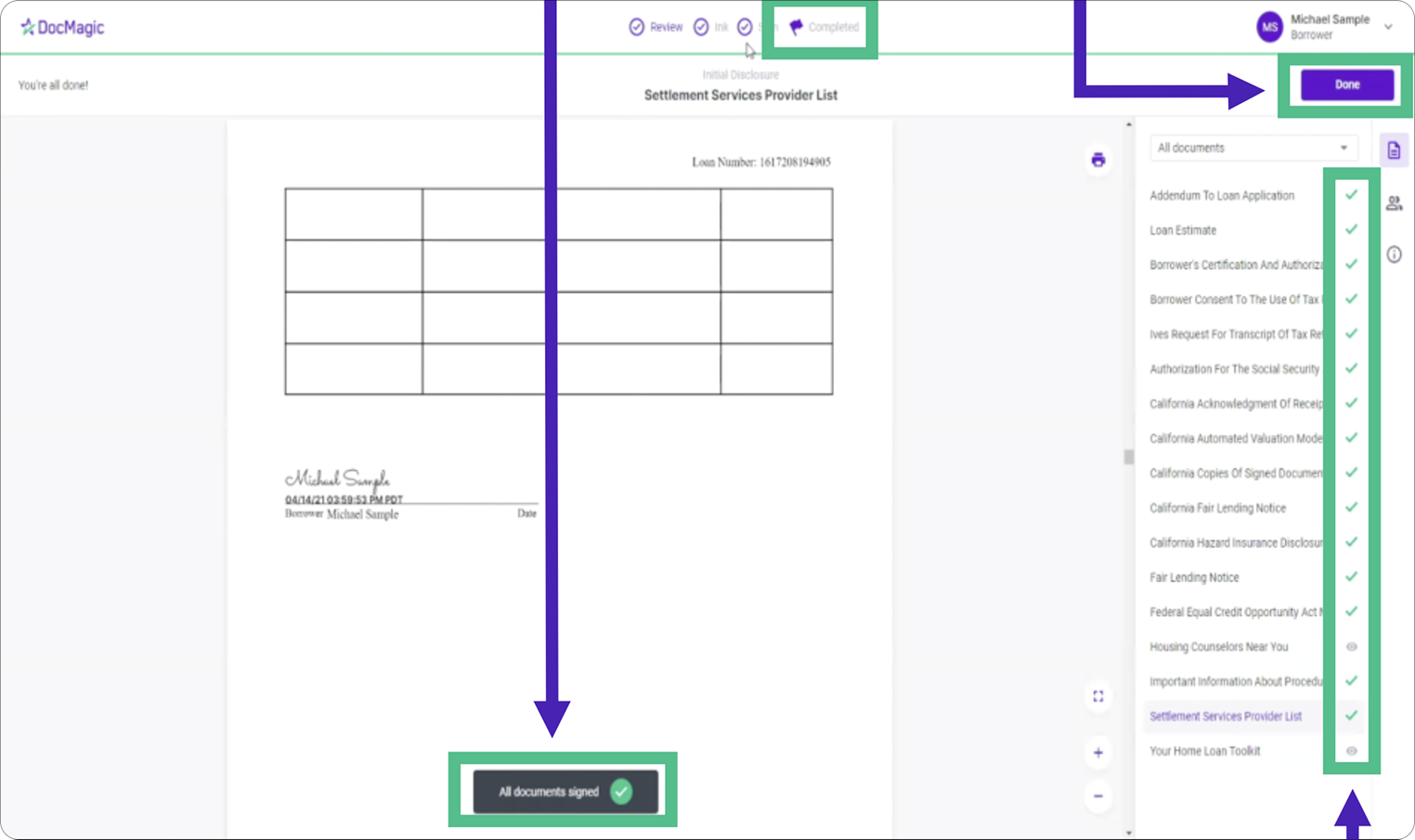
14. Download completed documents
Once complete, a confirmation pop-up will appear allowing you to download copies of your signed documents for your records.

Tips for a Smooth Signing
Take your time reviewing each document before signing. If you step away from the portal, avoid closing your browser until all signatures are complete.
If ink-signed documents are required, follow the print, sign, scan, and upload instructions carefully to prevent delays. Make sure uploaded files are clear and legible.
Watch the progress indicators and countdown to confirm that all required signatures and acknowledgments have been completed. If a document does not require a signature, it will be marked accordingly.
If you experience any technical issues, refreshing the page or switching browsers can often resolve them.
Final Thoughts
E-signing disclosures with STG Mortgage through DocMagic is a secure and efficient way to complete your loan documents online. Once finished, your signed disclosures are automatically returned to your loan team for review.
If you encounter any issues during the process, your UnrealFi loan advisor is always available to help.