Table of contents
As part of your mortgage application, Cardinal Financial will send you an email inviting you to access your loan through its secure Octane Borrower Dashboard. From the dashboard, you can review your loan information, upload requested documents, and electronically sign your initial disclosures.
This guide walks you through account setup, the one-time loan key, and the DocuSign process so you can complete your disclosures and keep your loan moving forward.
Before you begin: Have access to the email address and mobile phone number listed on your loan application. Your loan key is sent by text message and is valid for 10 minutes.
Step-by-Step: How to Sign Disclosures with Cardinal Financial
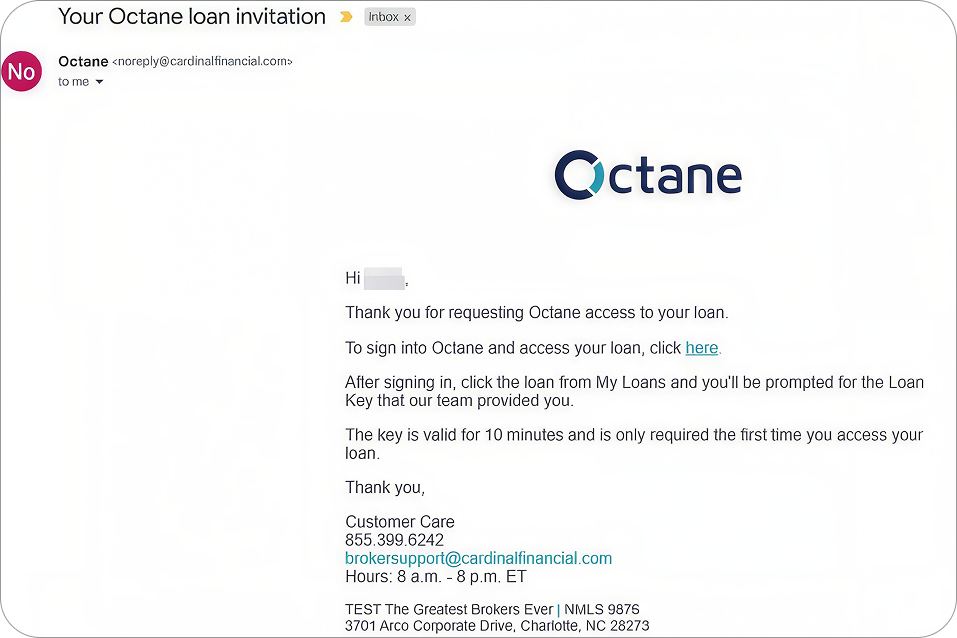
1. Open the Cardinal Financial Invitation Email
Look for an email with the subject Your Octane loan invitation. The message is sent from a Cardinal Financial no-reply address and contains a secure link to access your loan.
Select the link in the email to begin. If the link takes you to the regular sign-in page and you have not created your account, select Trouble Logging In? to request a link to the Complete your account page.
2. Create Your Octane Account
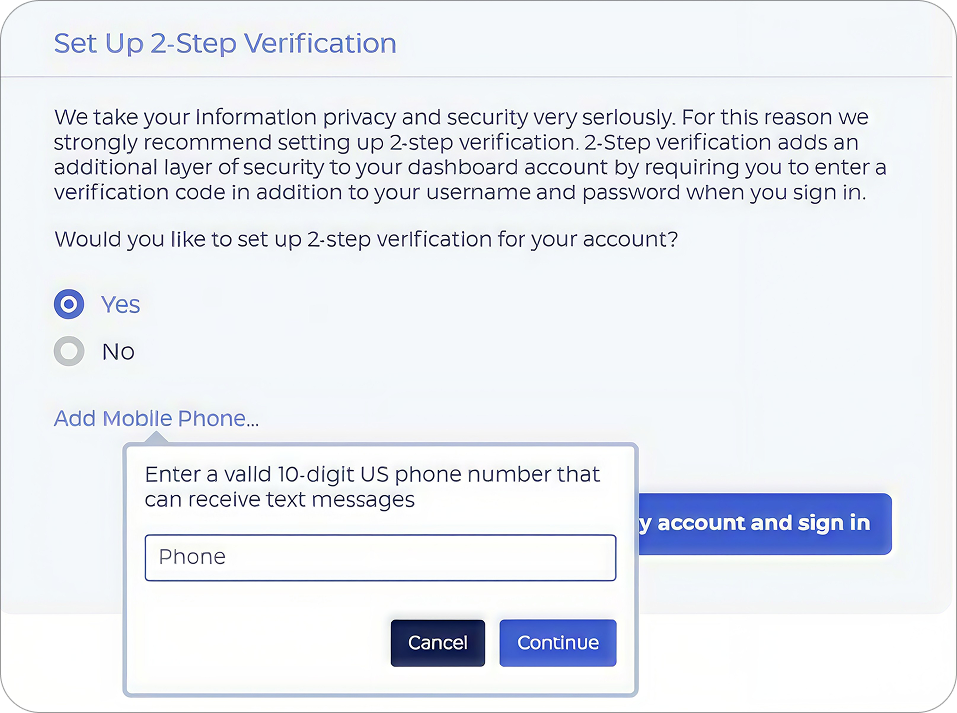
Create a unique password and follow the password requirements shown on the screen. Then select a challenge question and enter an answer. The challenge answer is not case-sensitive.
Choose whether to set up two-step verification. Cardinal Financial recommends this added security. If you choose it, enter a mobile number that can receive text messages and complete the verification prompt.
Select Complete my account, then sign in with your email address and the password you created.
3. Select Your Loan
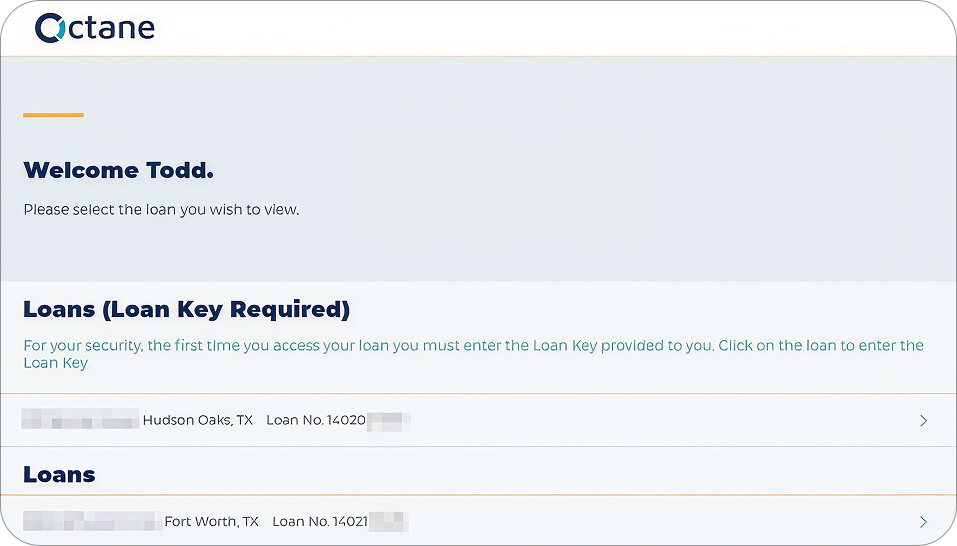
Choose the property address and loan number you want to open. If you have more than one loan in process, each property will appear as a separate item.
4. Accept the Electronic Consent Agreement
Review the Consent Agreement. This explains how Cardinal Financial will provide notices, disclosures, and other loan documents electronically.
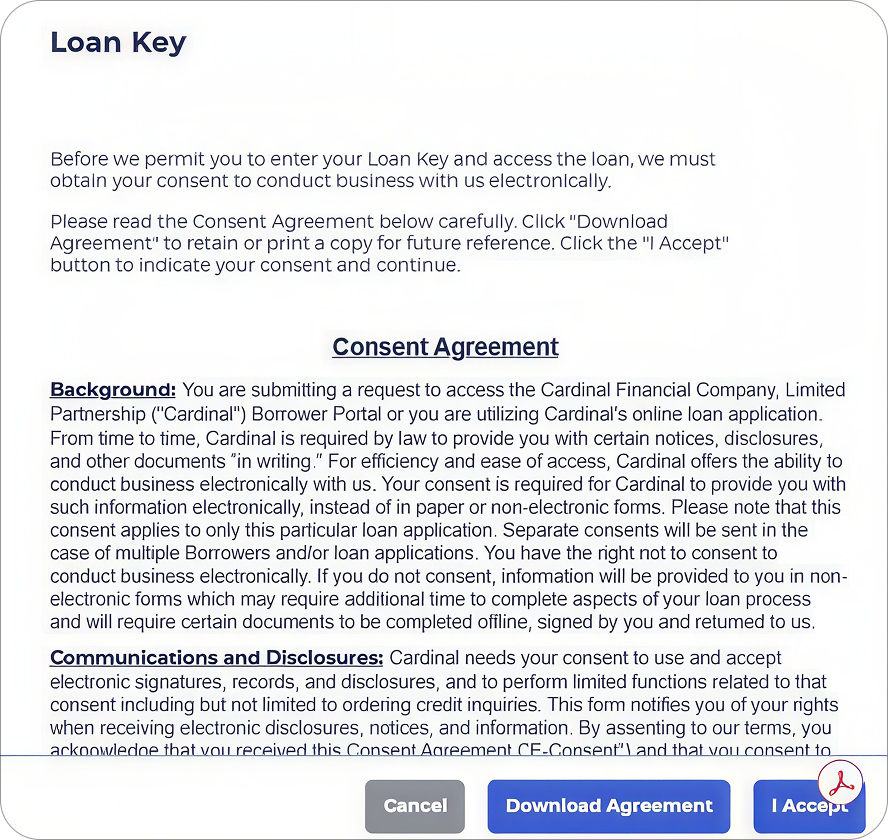
Select I Accept, then select Next. A one-time loan key will be sent by text message to the mobile number listed in your loan file.
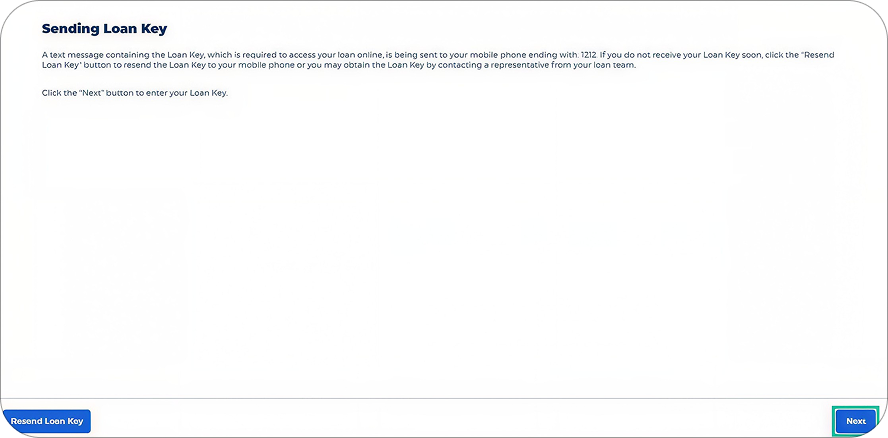
5. Enter the Loan Key
Enter the loan key from the text message and select Submit Key. The key is valid for 10 minutes and is required only the first time you access this loan.
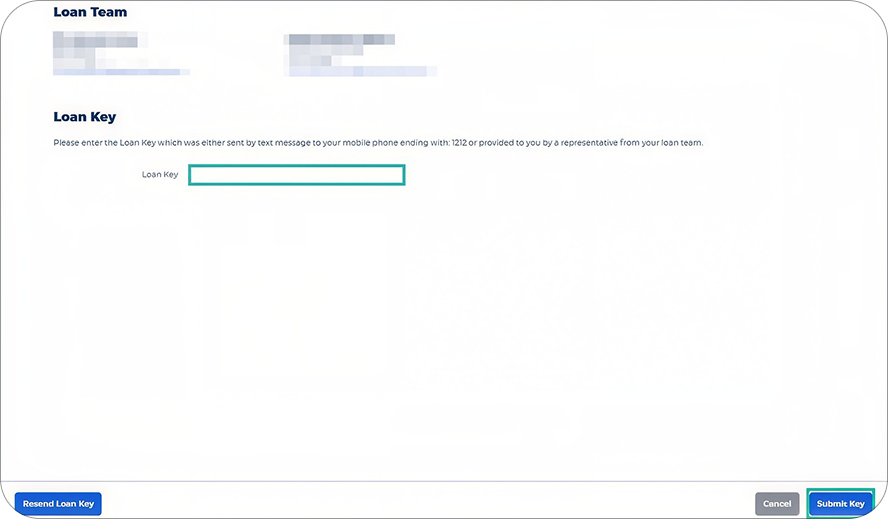
If the key is missing or has expired, select Resend Loan Key to receive a new one. Once the key is accepted, select Go To Loan to open your dashboard.
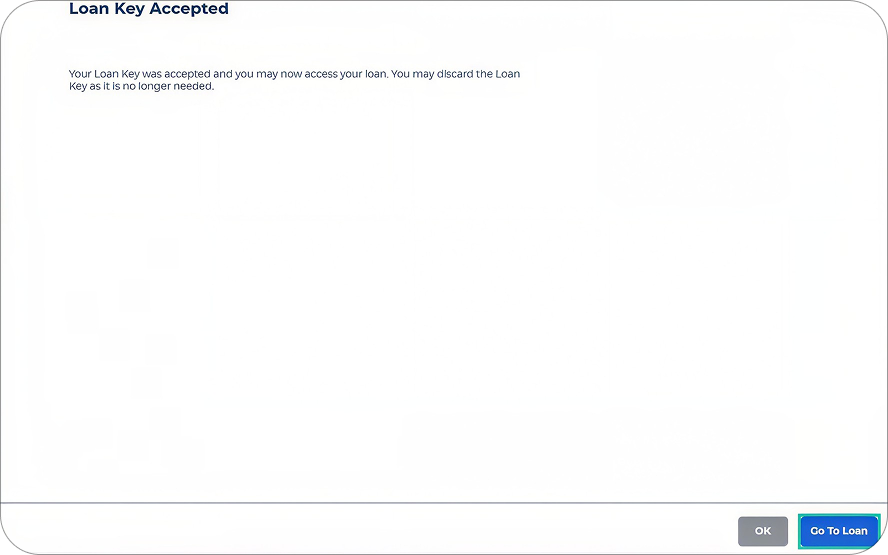
6. Open Your Disclosure Package
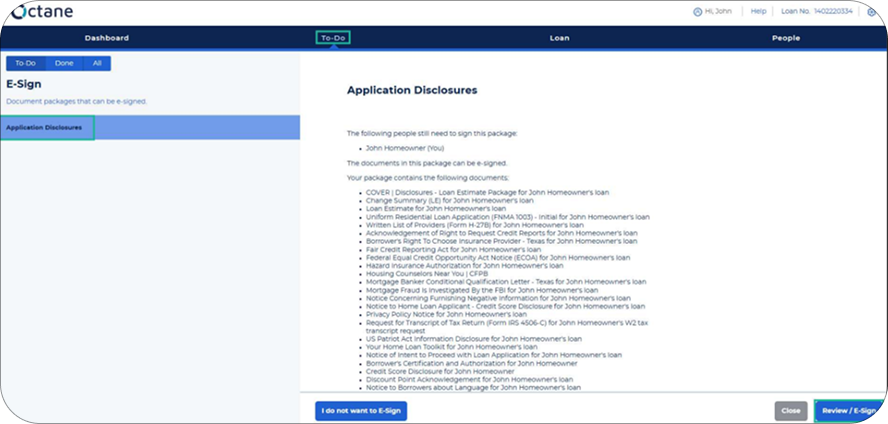
From the Borrower Dashboard, open the To-Do tab. Under E-Sign, select the Application Disclosures package, then select Review/E-Sign in the lower-right corner.
The disclosure package should open in a new browser tab. If nothing happens, allow pop-ups for the Octane website and select Review/E-Sign again.
7. Agree to Use Electronic Records and Signatures
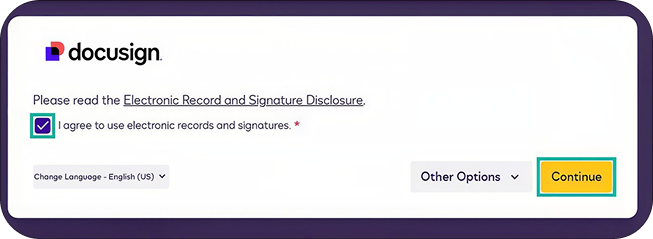
In DocuSign, check the box confirming that you agree to use electronic records and signatures. Select Continue to begin reviewing the package.
Need more help with DocuSign? See our complete guide to using DocuSign to e-sign your documents for detailed instructions on adopting your signature, completing required fields, and submitting your documents.
8. Review and Complete Every Required Field
Read each disclosure carefully. DocuSign will guide you to the places that require your initials, signature, checkbox selection, or another action. Required fields are marked with yellow indicators.
Apply your initials and electronic signature wherever DocuSign displays a yellow indicator, then continue through the remaining required fields.
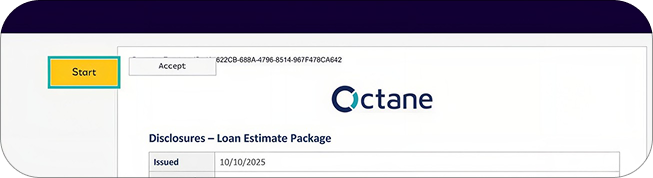
Important: For the Loan Estimate, your signature confirms that you received the form. It does not mean that you accept the loan.
9. Select Finish
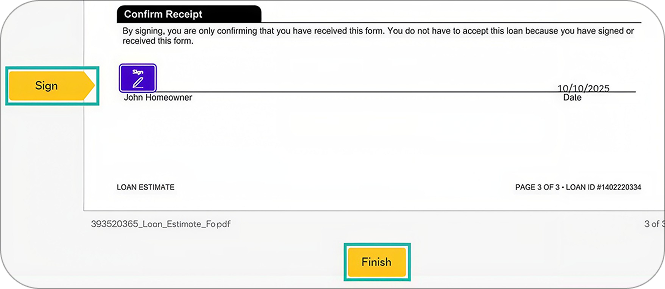
After all required fields are complete, select Finish. Your disclosure package is not fully submitted until you complete this final step.
If there are multiple borrowers, each person must complete their own required signatures. Cardinal Financial imports the completed package into Octane after all required parties have signed.
10. Confirm That Signing Is Complete
After selecting Finish, you should see a confirmation that the signing session is complete. Return to the Octane dashboard and check the To-Do tab. The package should no longer appear as an outstanding e-sign task after all required parties have finished.

Tips for a Smooth Signing
- Use the email invitation addressed specifically to you. Do not forward or share your access link or loan key.
- Remember that your email address is your Octane username. Your password is the one you created during account setup.
- Do not use the loan key as your password. The loan key is a one-time code used only when you first access the loan.
- Allow browser pop-ups if the DocuSign window does not open.
- Review the loan terms and personal information carefully. If anything appears incorrect, contact your UnrealFi loan advisor before selecting Finish.
- If you do not want to sign electronically, the Application Disclosures screen may offer an I do not want to E-sign option. This allows you to print and return a wet-signed package. Ask your loan advisor for instructions before choosing this option.
Troubleshooting
You Cannot Access Your Account
Confirm that you are using your email address as the username and the password you created during account setup. Select Trouble Logging In? on the Octane sign-in page if you need to regain access.
Your Loan Key Does Not Work
Loan keys expire after 10 minutes. Select Resend Loan Key and enter the newest code sent to the mobile number listed in your loan file.
The Disclosure Package Does Not Open
Allow pop-ups for the Octane website, return to the Application Disclosures package, and select Review/E-Sign again.
The Package Still Shows as Incomplete
Make sure you selected Finish in DocuSign and that every required borrower has completed their signing session. If the status does not update, contact your UnrealFi loan advisor.
Final Thoughts
Cardinal Financial uses the Octane Borrower Dashboard and DocuSign to make the disclosure process secure and convenient. Once every required signer has completed the package, the signed disclosures are returned electronically so your loan team can continue processing your mortgage application.
If you have questions or run into a problem, contact your UnrealFi loan advisor for help before completing the package.